> ## Documentation Index
> Fetch the complete documentation index at: https://docs.semgrep.dev/llms.txt
> Use this file to discover all available pages before exploring further.
# SAML SSO Error: Signature validation failed
When setting up SAML single-sign on (SSO), you may encounter the following error: `Signature validation failed. SAML Response rejected`
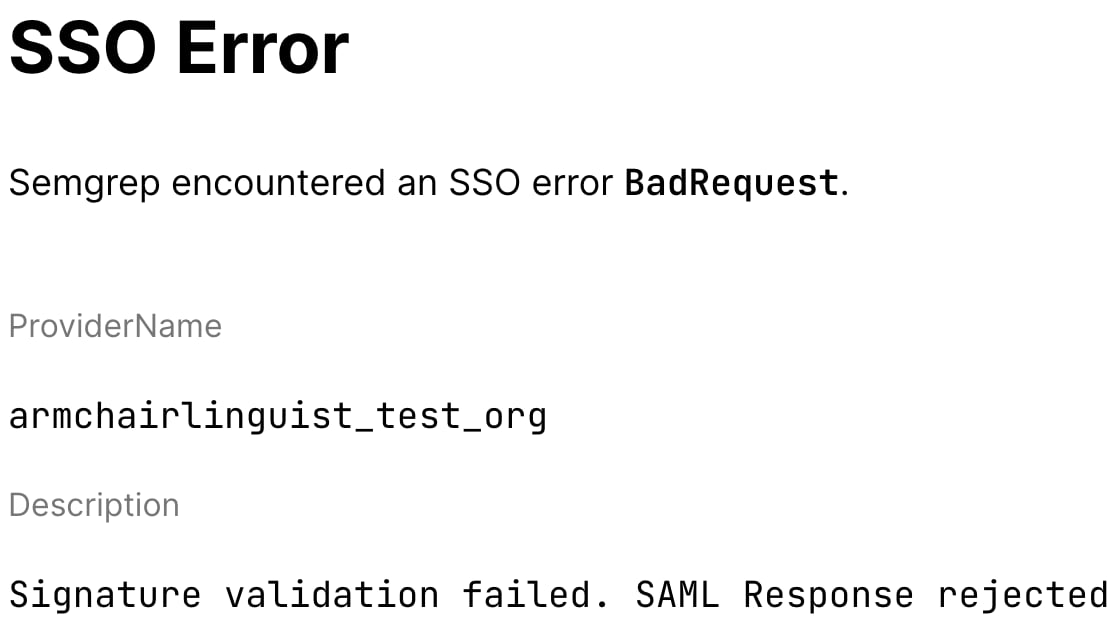 This indicates one of two things:
* You may not have entered the certificate correctly in the Semgrep SSO settings. Verify that the signature there matches the one provided by your IdP.
* Your certificate may have a problem, such as being outside its validity dates. Inspect the signature information for the certificate you uploaded to Semgrep AppSec Platform and ensure it is valid.
If your certificate file is stored as `server.crt`, you can view the signature information on the command-line using:
```console theme={null}
openssl x509 -in server.crt -text -noout
```
Check information such as:
* Certificate authority or Issuer
* Validity dates
* Signature algorithm and value
Address any problems with the certificate. Then, upload the resulting certificate to Semgrep AppSec Platform:
Sign in to [Semgrep AppSec Platform](https://semgrep.dev/login).
Click ** Settings > Access > [SSO](https://semgrep.dev/orgs/-/settings/access/sso)**.
In the **Upload/Paste certificate** box, add the correct certificate.
Click **Save**.
After updating the settings, attempt a new SSO login.
This indicates one of two things:
* You may not have entered the certificate correctly in the Semgrep SSO settings. Verify that the signature there matches the one provided by your IdP.
* Your certificate may have a problem, such as being outside its validity dates. Inspect the signature information for the certificate you uploaded to Semgrep AppSec Platform and ensure it is valid.
If your certificate file is stored as `server.crt`, you can view the signature information on the command-line using:
```console theme={null}
openssl x509 -in server.crt -text -noout
```
Check information such as:
* Certificate authority or Issuer
* Validity dates
* Signature algorithm and value
Address any problems with the certificate. Then, upload the resulting certificate to Semgrep AppSec Platform:
Sign in to [Semgrep AppSec Platform](https://semgrep.dev/login).
Click ** Settings > Access > [SSO](https://semgrep.dev/orgs/-/settings/access/sso)**.
In the **Upload/Paste certificate** box, add the correct certificate.
Click **Save**.
After updating the settings, attempt a new SSO login.