> ## Documentation Index
> Fetch the complete documentation index at: https://docs.semgrep.dev/llms.txt
> Use this file to discover all available pages before exploring further.
# Search, filter, and sort findings in Semgrep AppSec Platform
> Semgrep AppSec Platform provides you with an overview of the findings identified by Semgrep Code, Supply Chain, and Secrets. Each product-specific page provides you with filters to narrow down the list of findings shown to you. For example, you can filter for Semgrep Code findings that are flagged as false positives, or you can filter for Semgrep Supply Chain findings based on CVE.
Learn more about the filters Semgrep offers using the following articles:
The following sections of this article explain how you can use filters to identify a specific subset of findings.
## Identify Semgrep Code findings flagged as false positives
Sign in to [Semgrep AppSec Platform](https://semgrep.dev/login), and navigate to **Code**. You can view findings with a status of **Ignored > False positive** from either the default **Production backlog** view or the **Pre-production** view. The **Production backlog** displays all Semgrep Code findings, while **Pre-production** displays the findings about which Semgrep left comments.
## Identify Semgrep Code findings flagged by Multimodal as false positives
The **Autotriage** filter lists findings that Semgrep Multimodal evaluated as likely false positives. This includes both:
* **Rule-based findings**, which Semgrep automatically moves to the **Provisionally ignored** status when Multimodal flags them as false positives.
* **AI-powered detection findings**, which remain **Open** even when Multimodal flags them as false positives. AI-powered detection findings are not auto-triaged to **Provisionally ignored**, so you must use the **Autotriage** filter to find them.
Sign in to [ Semgrep AppSec Platform](https://semgrep.dev/login).
Navigate to **Code**.
Find the **Autotriage** filter, and click **False positive**.
Optional: To narrow results to only AI-powered detection findings, also apply the **AI-powered scan findings** filter.
## Search for specific findings by rule or CVE
This guide walks you through finding the specific rule ID in Semgrep, then applying it as a filter. You can then combine this filter with other filters, such as **Projects** or **Status**.
This method can be used for Semgrep Code and Supply Chain.
Sign in to [ Semgrep AppSec Platform](https://semgrep.dev/login).
Navigate to either the **Code** or **Supply Chain** page depending on which type of finding you're looking for.
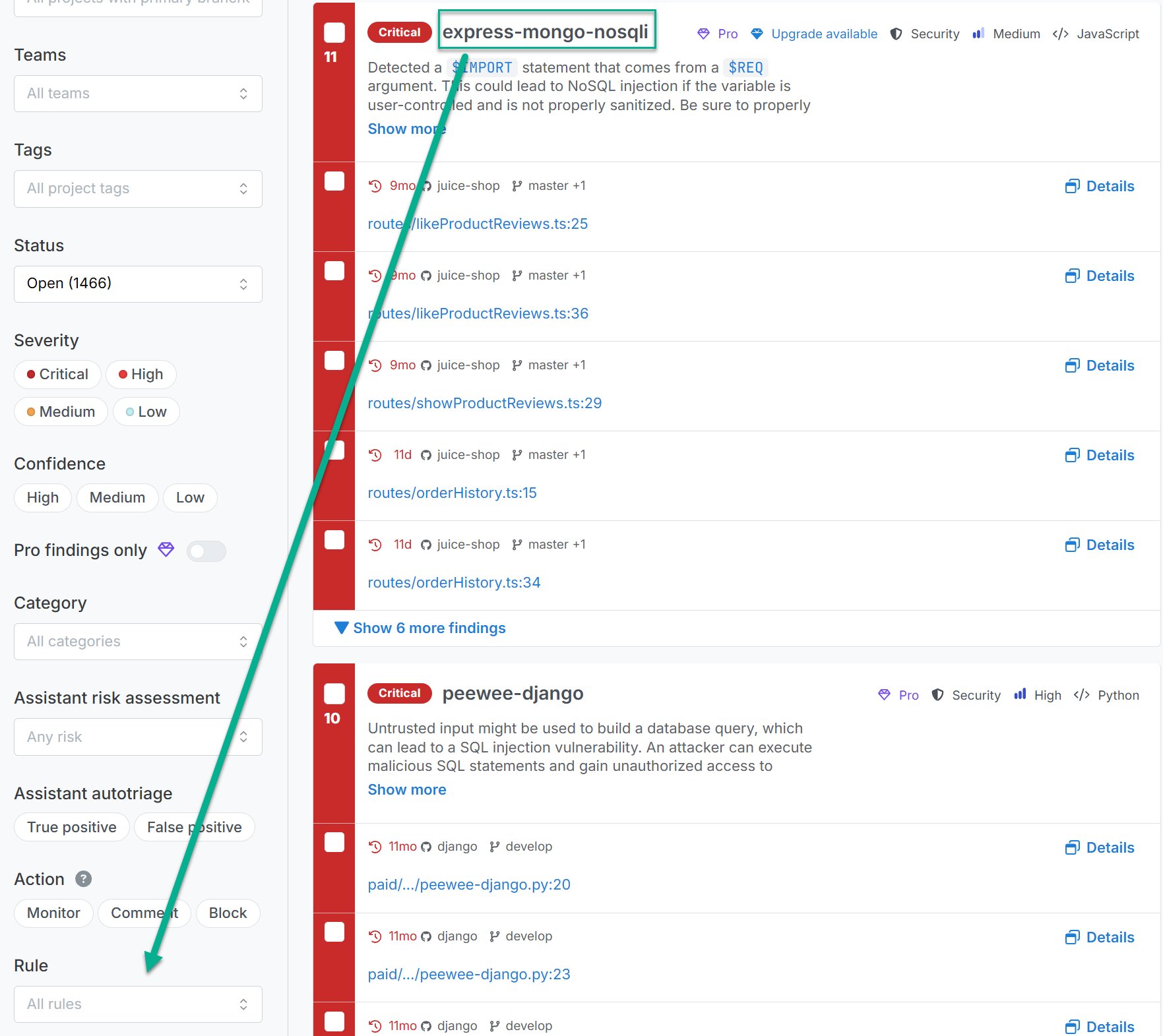
i. For Semgrep Code findings, the **Rule ID** is the heading of each group of findings. Copy this value.
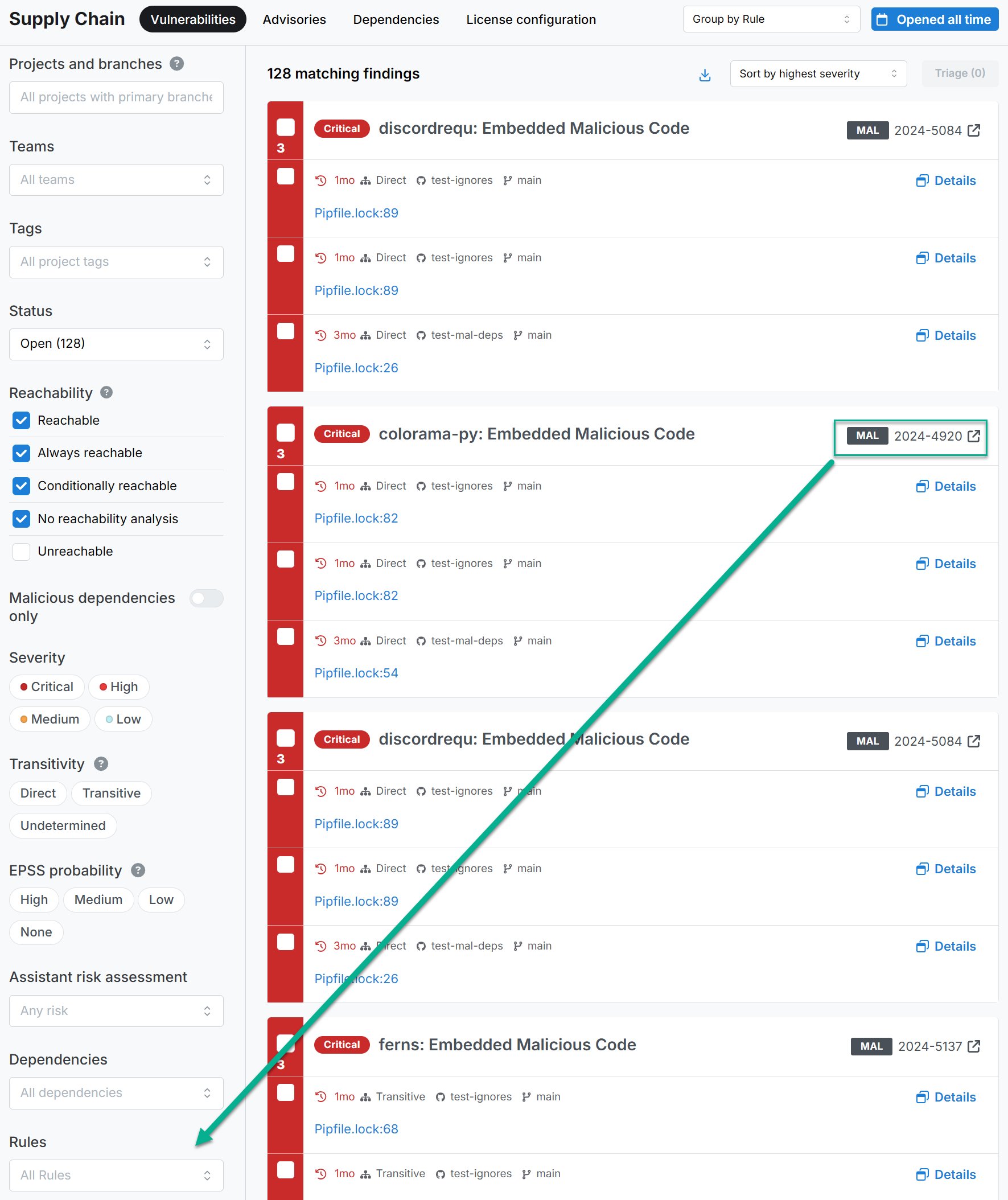
 ii. For Semgrep Supply Chain findings, the **CVE** or **MAL** ID is shown on the upper-right heading of each group of findings. Copy this value. Add a dash between the prefix, such as MAL or CVE, and the numerical value.
 Enter the value you copied in the **Rule** filter for Semgrep Code or **Rules** filter for Semgrep Supply Chain. This narrows down the findings to that specific rule or CVE.
You can continue adding values to the rules filter. The rules filter includes findings from **any** of the values indicated.
From there, you can apply any other filters as necessary.
Enter the value you copied in the **Rule** filter for Semgrep Code or **Rules** filter for Semgrep Supply Chain. This narrows down the findings to that specific rule or CVE.
You can continue adding values to the rules filter. The rules filter includes findings from **any** of the values indicated.
From there, you can apply any other filters as necessary.