> ## Documentation Index
> Fetch the complete documentation index at: https://docs.semgrep.dev/llms.txt
> Use this file to discover all available pages before exploring further.
# Why aren't findings populating in the GitHub Advanced Security Dashboard after running Semgrep in CI?
> When scanning with Semgrep in CI, findings automatically populate in Semgrep AppSec Platform. To show findings in the GitHub Advanced Security Dashboard, run an alternate job that uploads findings to the dashboard in the form of a `SARIF` file. See [Sample GitHub Actions configuration file](/semgrep-ci/sample-ci-configs/#sample-github-actions-configuration-file) for an example.
If you run the alternate job and it fails with a "resource not accessible by integration" error, there are two possible causes.
## Your repository's workflow permissions are set to read-only
Repository-level workflow permissions are set to `read-only` (default) unless they've previously been changed. Use of the `permissions` key within the workflow file does not override this setting.
To update this setting:
Navigate to your organization or repository in GitHub.
Click **Settings > Actions > General > Workflow permissions**.
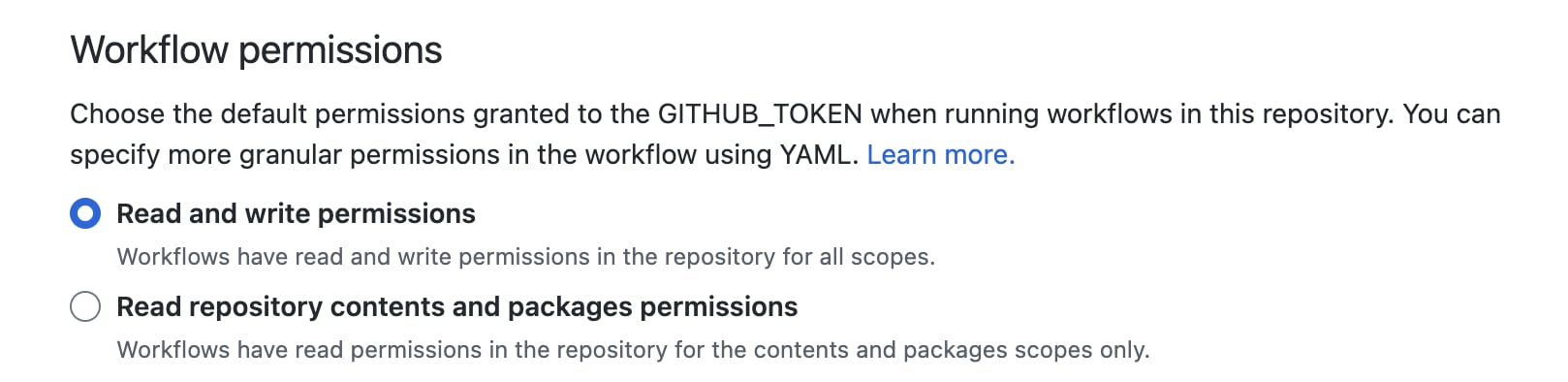 Target permissions
**INFO**
Changing the repository's default workflow permissions changes the permissions for all workflows in that repository. Use of the `permissions` key will not override this setting, so updating it is a required step. Learn more about the `permissions` key at [Assigning permissions to jobs](https://docs.github.com/en/actions/using-jobs/assigning-permissions-to-jobs#setting-the-github_token-permissions-for-all-jobs-in-a-workflow), or review the example workflow-level permissions below.
## The workflow or job does not have the correct permissions in a private repository
In order for Semgrep findings in a private repository to appear on the GitHub Advanced Security Dashboard, you must ensure that the appropriate permissions are configured at the workflow level using the `permissions` key. See the following example.
### Example job configuration with `permissions` key
This job only requires `write` permissions for `security-events`.
```yml expandable theme={null}
# Name of this GitHub Actions workflow.
name: Semgrep
on:
pull_request: {}
workflow_dispatch: {}
push:
branches: ["master", "main"]
schedule:
- cron: '20 17 * * *' # Sets Semgrep to scan every day at 17:20 UTC.
jobs:
semgrep:
name: semgrep/ci
runs-on: ubuntu-latest
container:
# A Docker image with Semgrep installed. Do not change this.
image: semgrep/semgrep
if: (github.actor != 'dependabot[bot]')
permissions:
# required for all workflows
security-events: write
# for workflows in private repos
actions: read
contents: read
steps:
- uses: actions/checkout@v6
- run: semgrep ci --sarif > semgrep.sarif
env:
SEMGREP_APP_TOKEN: ${{ secrets.SEMGREP_APP_TOKEN }}
- name: Upload SARIF file for GitHub Advanced Security Dashboard
uses: github/codeql-action/upload-sarif@v2
with:
sarif_file: semgrep.sarif
if: always()
```
Target permissions
**INFO**
Changing the repository's default workflow permissions changes the permissions for all workflows in that repository. Use of the `permissions` key will not override this setting, so updating it is a required step. Learn more about the `permissions` key at [Assigning permissions to jobs](https://docs.github.com/en/actions/using-jobs/assigning-permissions-to-jobs#setting-the-github_token-permissions-for-all-jobs-in-a-workflow), or review the example workflow-level permissions below.
## The workflow or job does not have the correct permissions in a private repository
In order for Semgrep findings in a private repository to appear on the GitHub Advanced Security Dashboard, you must ensure that the appropriate permissions are configured at the workflow level using the `permissions` key. See the following example.
### Example job configuration with `permissions` key
This job only requires `write` permissions for `security-events`.
```yml expandable theme={null}
# Name of this GitHub Actions workflow.
name: Semgrep
on:
pull_request: {}
workflow_dispatch: {}
push:
branches: ["master", "main"]
schedule:
- cron: '20 17 * * *' # Sets Semgrep to scan every day at 17:20 UTC.
jobs:
semgrep:
name: semgrep/ci
runs-on: ubuntu-latest
container:
# A Docker image with Semgrep installed. Do not change this.
image: semgrep/semgrep
if: (github.actor != 'dependabot[bot]')
permissions:
# required for all workflows
security-events: write
# for workflows in private repos
actions: read
contents: read
steps:
- uses: actions/checkout@v6
- run: semgrep ci --sarif > semgrep.sarif
env:
SEMGREP_APP_TOKEN: ${{ secrets.SEMGREP_APP_TOKEN }}
- name: Upload SARIF file for GitHub Advanced Security Dashboard
uses: github/codeql-action/upload-sarif@v2
with:
sarif_file: semgrep.sarif
if: always()
```