> ## Documentation Index
> Fetch the complete documentation index at: https://docs.semgrep.dev/llms.txt
> Use this file to discover all available pages before exploring further.
# Malware incident response with Semgrep Supply Chain
> This document describes how to respond to a malicious dependency incident using Semgrep Supply Chain.
## 1. Check the results from your most recent full scan
Semgrep maintains a record of the dependencies in your project that is updated whenever a full scan runs. As soon as you have reason to be concerned, check this record to see if those packages and versions were present in your environment at the time of the scan.
You can do this in Semgrep AppSec Platform using the [**Dependencies** tab](https://semgrep.dev/orgs/-/supply-chain/t/dependencies) and its dependency search functionality or through the Semgrep API.
### Find malicious versions of packages with dependency search
The [dependency search](https://semgrep.dev/orgs/-/supply-chain/t/dependencies) allows you to search:
* For a package using its name, such as `gitdb2`
* For a specific version of a package
* For a range of versions, such as `tar` versions between 4.0 and 5.0
To search for dependencies:
Enter the dependency name and press **Enter** or **Return**. This returns a list of matches, but you can then filter your results further by version number:
i. Click the name of your dependency to open the **Dependency** dialog:
ii. To search for a **specific version** of a package, click **Exact match**, then enter the **version** number.
iii. To search for a **range of versions**, click **Range**, then enter the minimum and maximum versions.
iv. Click **Apply** to save your changes and see your results.
You can also use the **Advanced search** to search for specific versions of dependencies:
Click **Advanced search**.
Enter the **Dependency** name.
To specify a **version** number, click **Exact match**. For a range, click **Range** and provide the minimum and maximum versions.
**Optional**: to search for a **specific version** of a package, click **Exact match**, then enter the **version** number.
**Optional**: to search for a **range of versions**, click **Range**, then enter the minimum and maximum versions.
You can search for multiple packages simultaneously.
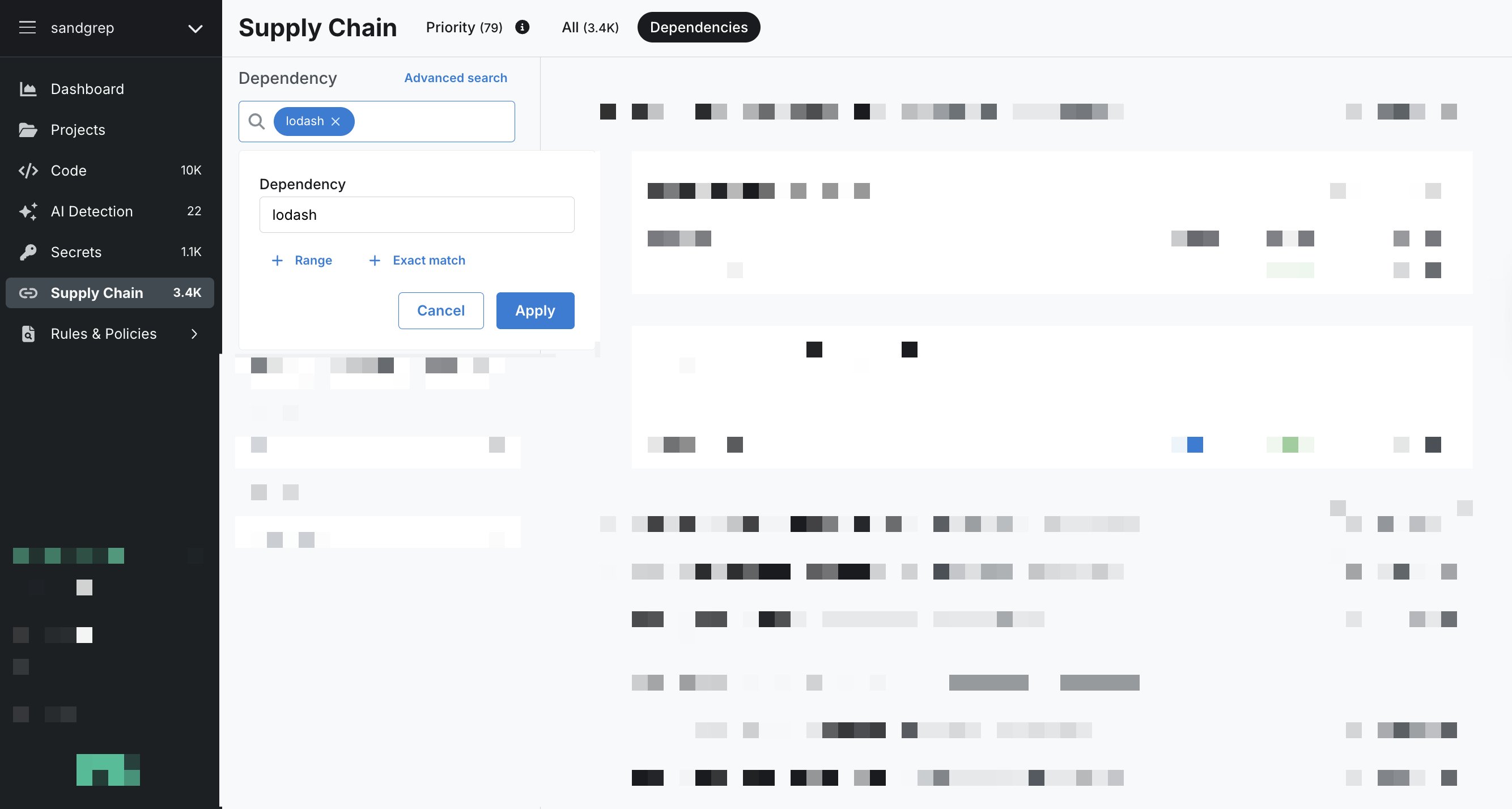 You can also use a URL like this: [https://semgrep.dev/orgs/-/supply-chain/t/dependencies?q=lodash%40%>4.17](https://semgrep.dev/orgs/-/supply-chain/t/dependencies?q=lodash%40%>4.17)
### Find malicious versions of packages using the Semgrep API
You can use the Semgrep API to find matching malicious package versions in your projects using the following endpoints:
* [List dependencies](/api-reference/v1/supplychainservice/list-dependencies)
* [Create a new SBOM export job](/api-reference/v1/supplychainservice/list-dependencies)
#### List dependencies
Use this endpoint to search for specific packages and versions across your deployment. You can filter by ecosystem and specify version ranges or exact versions.
```bash expandable theme={null}
curl -L -g 'https://semgrep.dev/api/v1/deployments/{your_deployment_id}/dependencies' \
-H 'accept: application/json' \
-H 'authorization: Bearer ' \
-H 'Content-Type: application/json' \
-d '{
"dependencyFilter": {
"ecosysystem": [
"npm"
],
"packageFilters": [
{
"name": "lodash",
"versionLowerBound": ">4.17"
},
{
"name": "jridgewell-resolve-uri-latest",
"exactVersion": "9999.999.999"
}
]
},
"deploymentId":
}'
```
#### Create a new SBOM export job
Use this endpoint to generate a Software Bill of Materials (SBOM) for a specific repository. This is a multi-step process: first create an export job, then poll for its completion to retrieve the download URL.
**Step 1: Create the export job**
```bash theme={null}
curl -L 'https://semgrep.dev/api/v1/deployments/{your_deployment_id}/sbom/export' \
-H 'Content-Type: application/json' \
-H 'Authorization: Bearer ' \
-d '{
"deploymentId": ,
"repositoryId": ,
"sbomOutputFormat": "SBOM_OUTPUT_FORMAT_JSON"
}'
```
This returns a task token that you'll use to check the job status:
```json theme={null}
{
"taskToken": ""
}
```
**Step 2: Poll for job completion**
Use the task token from Step 1 to check the export job status:
```bash theme={null}
curl -L 'https://semgrep.dev/api/v1/deployments/{your_deployment_id}/sbom/export/{TASK_TOKEN_FOR_EXPORT_JOB}' \
-H 'Authorization: Bearer '
```
When the job completes, the response includes a signed download URL:
```json theme={null}
{
"status": "SBOM_EXPORT_STATUS_COMPLETED",
"downloadUrl": "https://s3.amazon.com/signed/url/to/download/sbom"
}
```
You can then download the SBOM from the provided URL.
## 2. Verify that your next scan includes rules for the incident
For all major security incidents, the Semgrep Security Research team responds within one business day, typically within four hours, and delivers rules to all customer accounts to check for malicious package versions.
Due to time zones, holidays, and the sometimes subjective nature of incident severity, contact [Semgrep support](/support) to verify that we are actively working on a rule in response to a malware incident.
Otherwise, wait for a notification from Semgrep through regular channels, such as Slack, that the rules related to the incident have been deployed.
## 3. Initiate scans on potentially affected projects with Semgrep rules
If the malicious version of the dependency was introduced after the scan, your projects could be affected even if the most recent scans showed no findings.
Furthermore, running a full scan with Semgrep rules provides clear visibility into affected repositories and branches across all scanned code. See [View results from your Semgrep scans](#4-view-results-from-your-semgrep-scans) for more information.
### Initiate scans with Semgrep Managed Scanning
If you're using Semgrep Managed Scans, you can choose to run full scans on any potentially affected repositories manually:
Go to the **Projects** page in Semgrep App Platform.
Select the projects of interest.
Click **Run a new scan > Rule-based detection** to start scans on the repositories that may be affected. For example, in an `npm` package compromise, Semgrep recommends scanning any project that may contain JavaScript.
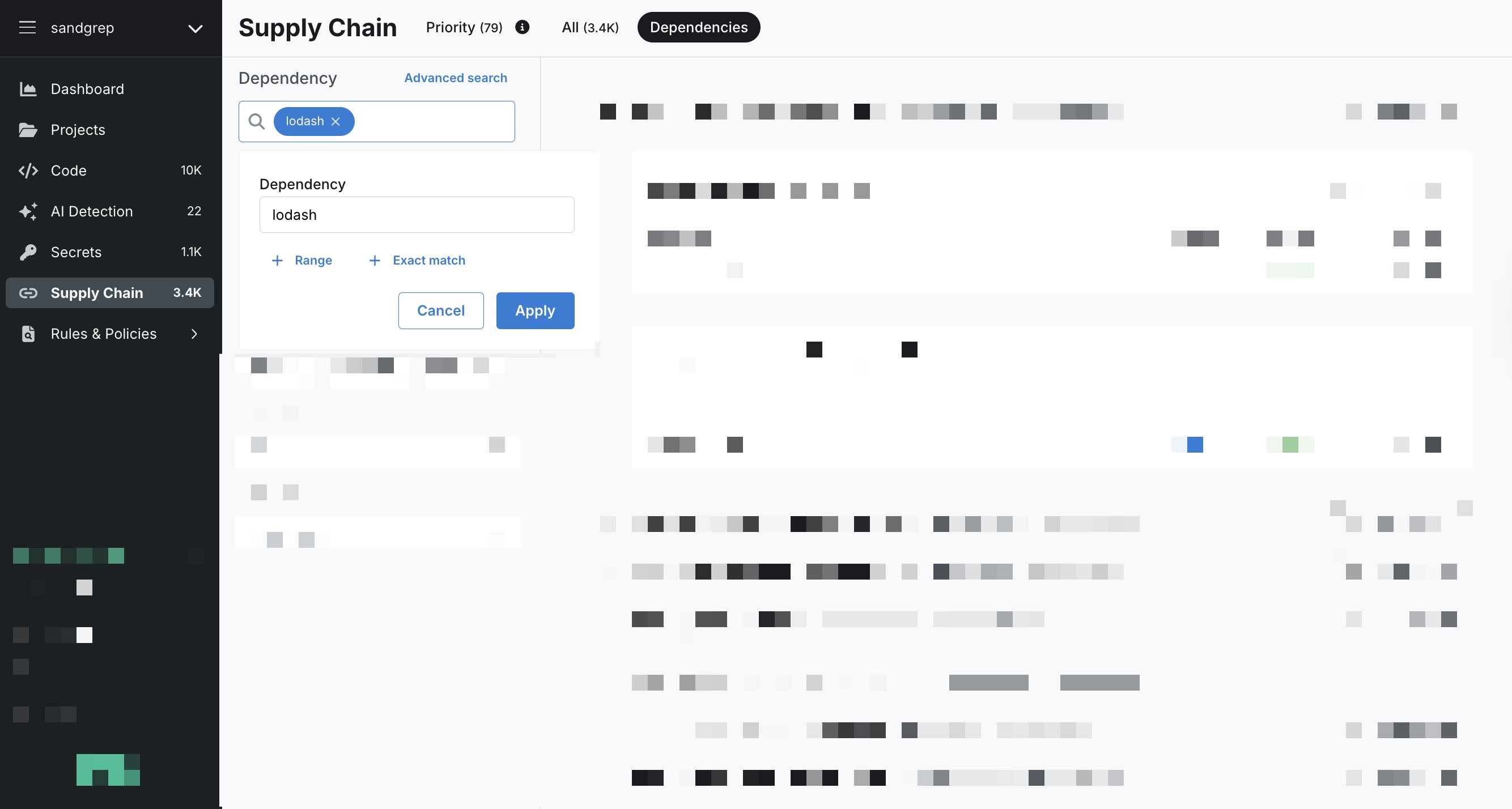
You can also use a URL like this: [https://semgrep.dev/orgs/-/supply-chain/t/dependencies?q=lodash%40%>4.17](https://semgrep.dev/orgs/-/supply-chain/t/dependencies?q=lodash%40%>4.17)
### Find malicious versions of packages using the Semgrep API
You can use the Semgrep API to find matching malicious package versions in your projects using the following endpoints:
* [List dependencies](/api-reference/v1/supplychainservice/list-dependencies)
* [Create a new SBOM export job](/api-reference/v1/supplychainservice/list-dependencies)
#### List dependencies
Use this endpoint to search for specific packages and versions across your deployment. You can filter by ecosystem and specify version ranges or exact versions.
```bash expandable theme={null}
curl -L -g 'https://semgrep.dev/api/v1/deployments/{your_deployment_id}/dependencies' \
-H 'accept: application/json' \
-H 'authorization: Bearer ' \
-H 'Content-Type: application/json' \
-d '{
"dependencyFilter": {
"ecosysystem": [
"npm"
],
"packageFilters": [
{
"name": "lodash",
"versionLowerBound": ">4.17"
},
{
"name": "jridgewell-resolve-uri-latest",
"exactVersion": "9999.999.999"
}
]
},
"deploymentId":
}'
```
#### Create a new SBOM export job
Use this endpoint to generate a Software Bill of Materials (SBOM) for a specific repository. This is a multi-step process: first create an export job, then poll for its completion to retrieve the download URL.
**Step 1: Create the export job**
```bash theme={null}
curl -L 'https://semgrep.dev/api/v1/deployments/{your_deployment_id}/sbom/export' \
-H 'Content-Type: application/json' \
-H 'Authorization: Bearer ' \
-d '{
"deploymentId": ,
"repositoryId": ,
"sbomOutputFormat": "SBOM_OUTPUT_FORMAT_JSON"
}'
```
This returns a task token that you'll use to check the job status:
```json theme={null}
{
"taskToken": ""
}
```
**Step 2: Poll for job completion**
Use the task token from Step 1 to check the export job status:
```bash theme={null}
curl -L 'https://semgrep.dev/api/v1/deployments/{your_deployment_id}/sbom/export/{TASK_TOKEN_FOR_EXPORT_JOB}' \
-H 'Authorization: Bearer '
```
When the job completes, the response includes a signed download URL:
```json theme={null}
{
"status": "SBOM_EXPORT_STATUS_COMPLETED",
"downloadUrl": "https://s3.amazon.com/signed/url/to/download/sbom"
}
```
You can then download the SBOM from the provided URL.
## 2. Verify that your next scan includes rules for the incident
For all major security incidents, the Semgrep Security Research team responds within one business day, typically within four hours, and delivers rules to all customer accounts to check for malicious package versions.
Due to time zones, holidays, and the sometimes subjective nature of incident severity, contact [Semgrep support](/support) to verify that we are actively working on a rule in response to a malware incident.
Otherwise, wait for a notification from Semgrep through regular channels, such as Slack, that the rules related to the incident have been deployed.
## 3. Initiate scans on potentially affected projects with Semgrep rules
If the malicious version of the dependency was introduced after the scan, your projects could be affected even if the most recent scans showed no findings.
Furthermore, running a full scan with Semgrep rules provides clear visibility into affected repositories and branches across all scanned code. See [View results from your Semgrep scans](#4-view-results-from-your-semgrep-scans) for more information.
### Initiate scans with Semgrep Managed Scanning
If you're using Semgrep Managed Scans, you can choose to run full scans on any potentially affected repositories manually:
Go to the **Projects** page in Semgrep App Platform.
Select the projects of interest.
Click **Run a new scan > Rule-based detection** to start scans on the repositories that may be affected. For example, in an `npm` package compromise, Semgrep recommends scanning any project that may contain JavaScript.
 ### Initiate scans in your CI/CD pipelines
If you're running scans in your CI/CD pipelines, manually trigger a Semgrep scan of any projects that may be impacted.
### Initiate a local scan
If you have large repositories or difficulty accessing your CI/CD system, it may be most efficient to run a local scan.
In the directory where you want to run the scan, choose one of the following commands:
* Run `semgrep ci --supply-chain` if the repository is checked out using Git. This uploads findings to Semgrep AppSec Platform. Note: to view findings in the Semgrep AppSec Platform, you must be logged in before running a scan. Log in by running `semgrep login`.
* Run `semgrep scan --config supply-chain .` if you want to scan without a Git checkout. In this mode, findings are available for local review and are not sent to the Semgrep AppSec Platform.
### Scan results
Regardless of the method you use to scan your project, the findings generated are, by default, of **Critical** severity and **Always Reachable**. Any workflows or automation set up using Supply Chain policies or a ticketing system such as Jira are automatically triggered by these findings, so notifications are sent to developers immediately.
## 4. View results from your Semgrep scans
Semgrep AppSec Platform displays all affected projects and their findings after your scans complete using the new rules. To see this information:
Go to [**Rules & Policies > Advisories**](https://semgrep.dev/orgs/-/advisories).
Using the **Advisory** filter, provide the relevant CVE or keywords. If a CVE ID hasn’t been assigned, use the ID provided by Semgrep.
Click the advisory in the results list to open up the **Advisory Details** dialog.
Go to **Affected projects**.
### Initiate scans in your CI/CD pipelines
If you're running scans in your CI/CD pipelines, manually trigger a Semgrep scan of any projects that may be impacted.
### Initiate a local scan
If you have large repositories or difficulty accessing your CI/CD system, it may be most efficient to run a local scan.
In the directory where you want to run the scan, choose one of the following commands:
* Run `semgrep ci --supply-chain` if the repository is checked out using Git. This uploads findings to Semgrep AppSec Platform. Note: to view findings in the Semgrep AppSec Platform, you must be logged in before running a scan. Log in by running `semgrep login`.
* Run `semgrep scan --config supply-chain .` if you want to scan without a Git checkout. In this mode, findings are available for local review and are not sent to the Semgrep AppSec Platform.
### Scan results
Regardless of the method you use to scan your project, the findings generated are, by default, of **Critical** severity and **Always Reachable**. Any workflows or automation set up using Supply Chain policies or a ticketing system such as Jira are automatically triggered by these findings, so notifications are sent to developers immediately.
## 4. View results from your Semgrep scans
Semgrep AppSec Platform displays all affected projects and their findings after your scans complete using the new rules. To see this information:
Go to [**Rules & Policies > Advisories**](https://semgrep.dev/orgs/-/advisories).
Using the **Advisory** filter, provide the relevant CVE or keywords. If a CVE ID hasn’t been assigned, use the ID provided by Semgrep.
Click the advisory in the results list to open up the **Advisory Details** dialog.
Go to **Affected projects**.
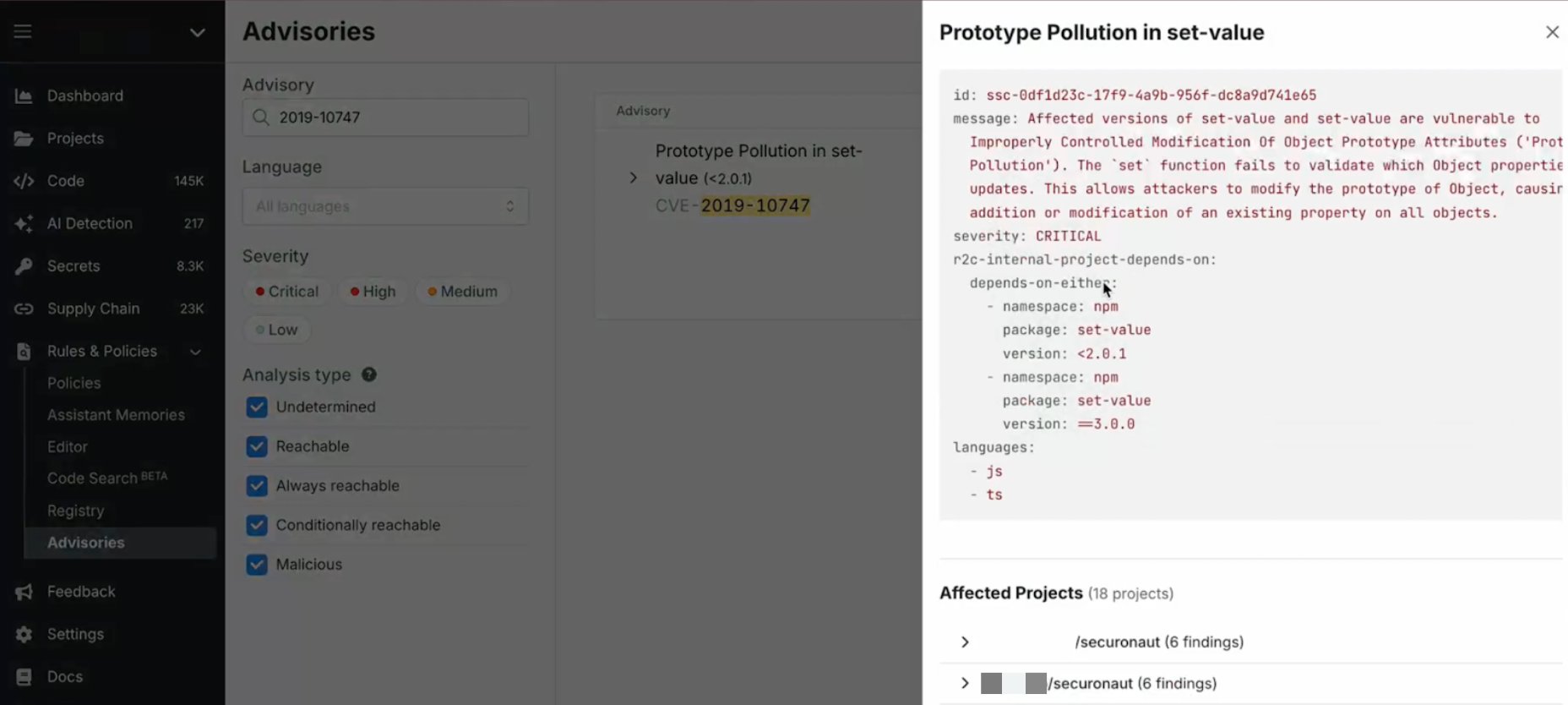 If Semgrep provides you with a direct link in a notification, such as a Slack message, you can use that to view the same information.
To search for an advisory by package name, click on the advisory in the list and open the **Advisory Details** dialog:
If Semgrep provides you with a direct link in a notification, such as a Slack message, you can use that to view the same information.
To search for an advisory by package name, click on the advisory in the list and open the **Advisory Details** dialog:
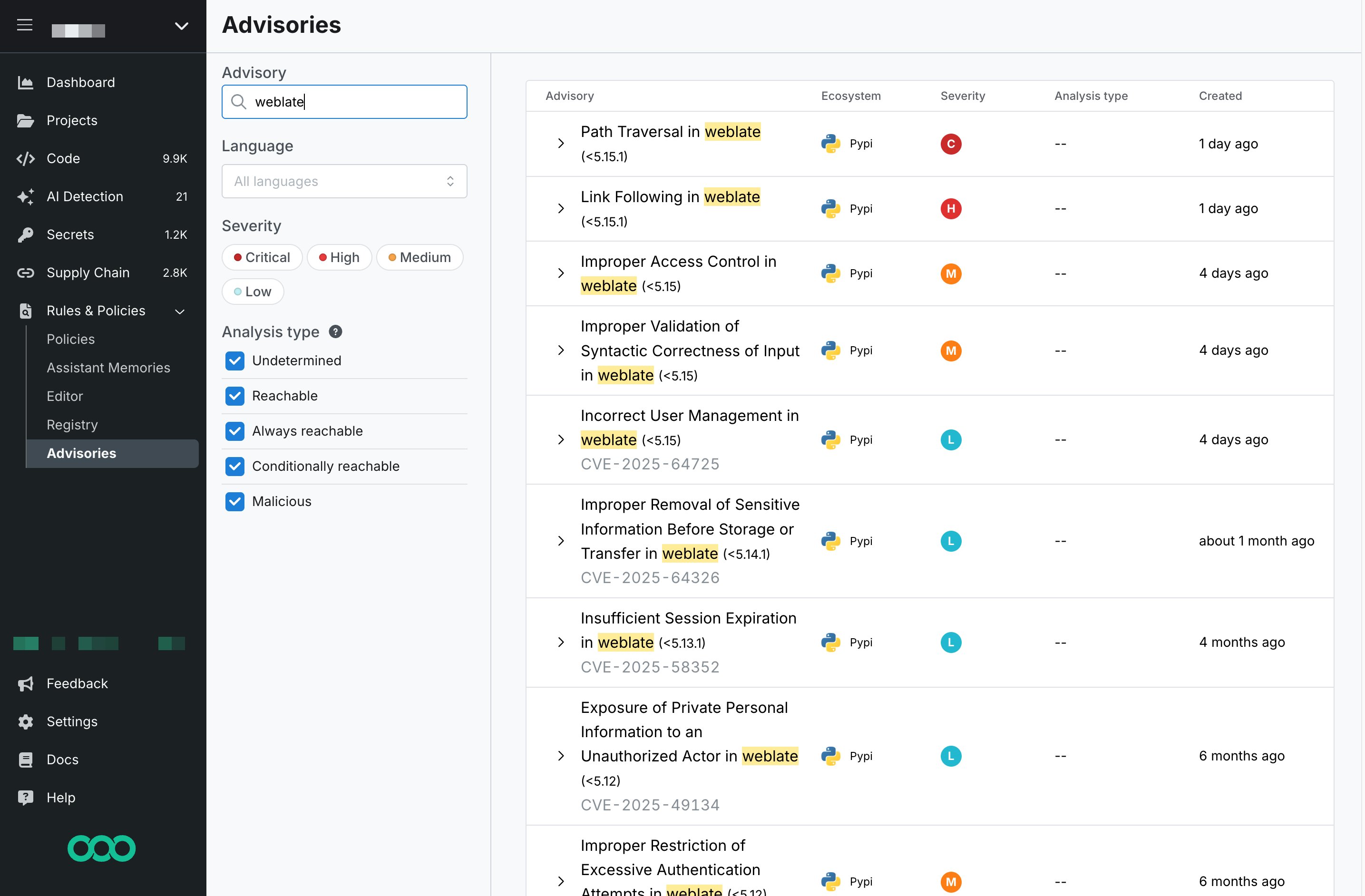 If there are no findings for the rules run on the projects scanned, Semgrep shows no results:
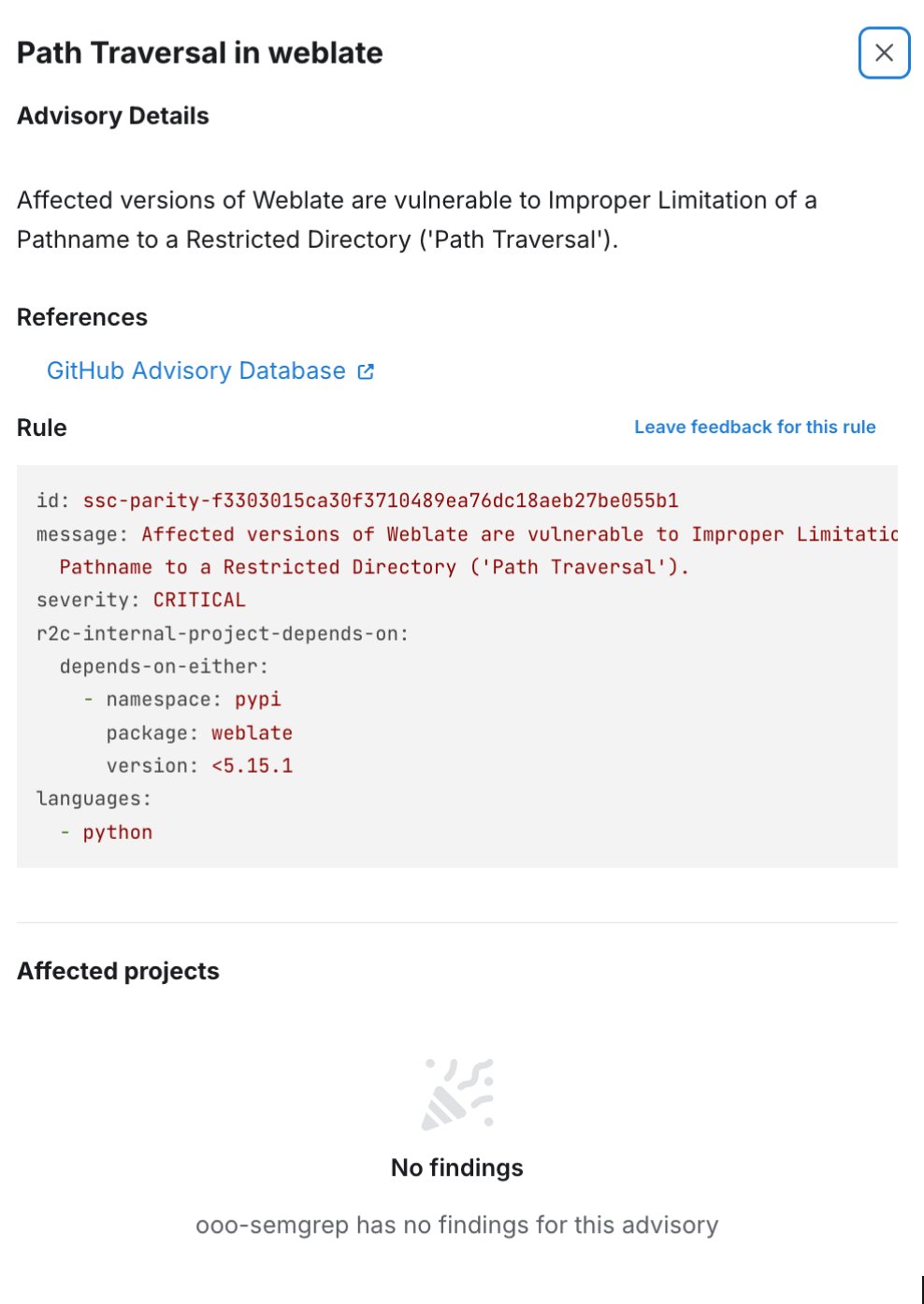 Before concluding you’re not affected, verify that the rules corresponding to the incident were included in recent scans.
However, if there are results, Semgrep shows the number of findings by project, as well as the breakdown of which branches in the codebase are impacted:
Before concluding you’re not affected, verify that the rules corresponding to the incident were included in recent scans.
However, if there are results, Semgrep shows the number of findings by project, as well as the breakdown of which branches in the codebase are impacted:
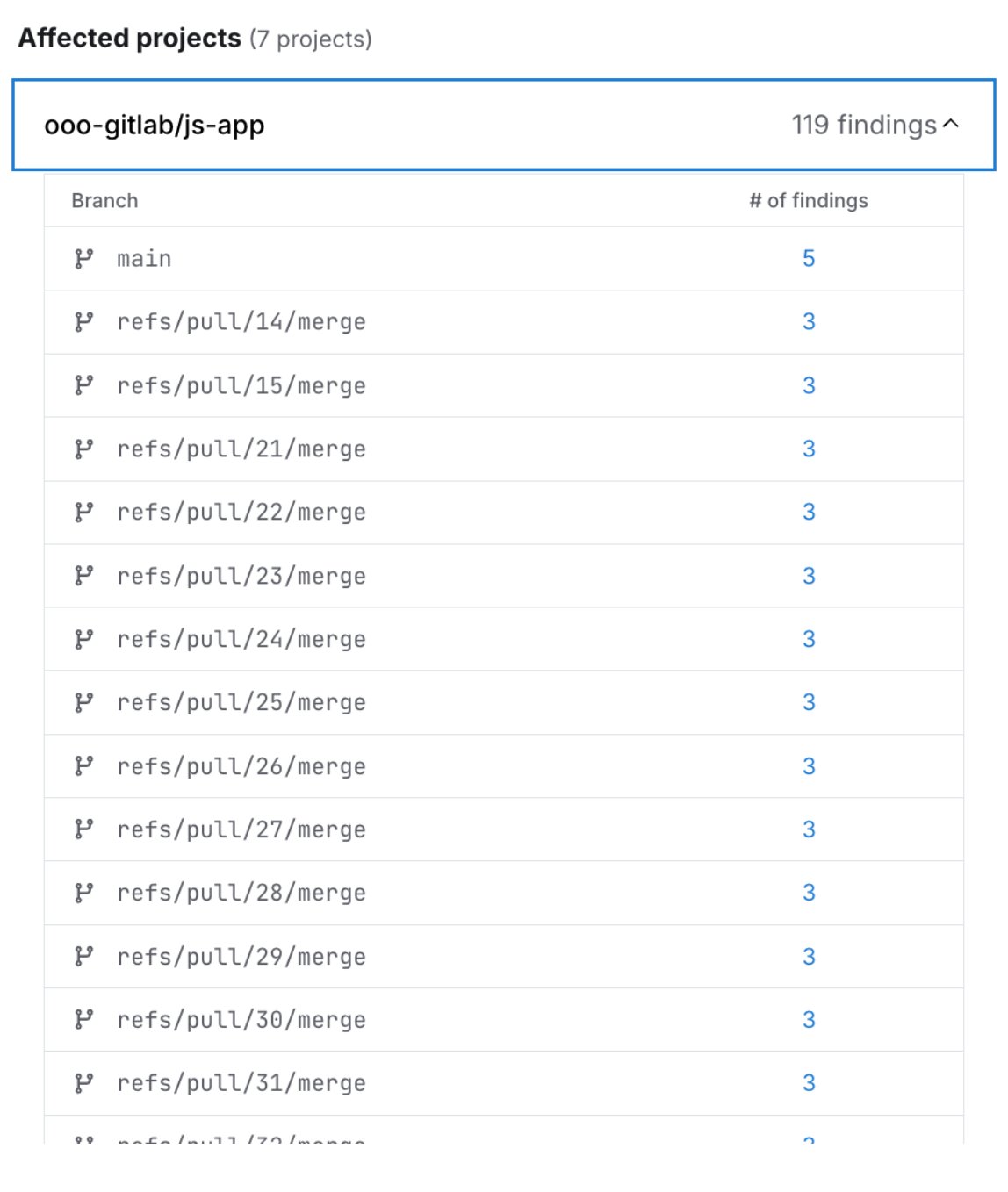 Click on the number of findings to go to the **Findings** page, where you will see a list of results for that project's branch.
## 5. Remove any malicious versions and re-scan your project
Once the incident's impact is clear, immediately remove the malicious dependency from your codebase, including all repositories and branches. The fastest way to do it is often to downgrade to an uncompromised version.
It is essential to follow any other response steps specific to the incident, which could involve changes to CI/CD workflows, internal package registries, and other aspects of your software supply chain.
Once you’ve completed your incident response, re-run a Supply Chain scan on the same set of repositories and verify that the outcome shows no findings for the malicious advisory.
## 6. Block the introduction of malicious packages
To reduce the frequency of such issues, [create Supply Chain policies](/semgrep-supply-chain/policies#create-a-policy) to block the introduction of malicious package versions.
## 7. Additional steps
Depending on the particulars relevant to the incident, other steps may also be recommended. Refer to the [Semgrep blog](https://semgrep.dev/blog/) or to messages from [Support](/support) for the latest updates.
Click on the number of findings to go to the **Findings** page, where you will see a list of results for that project's branch.
## 5. Remove any malicious versions and re-scan your project
Once the incident's impact is clear, immediately remove the malicious dependency from your codebase, including all repositories and branches. The fastest way to do it is often to downgrade to an uncompromised version.
It is essential to follow any other response steps specific to the incident, which could involve changes to CI/CD workflows, internal package registries, and other aspects of your software supply chain.
Once you’ve completed your incident response, re-run a Supply Chain scan on the same set of repositories and verify that the outcome shows no findings for the malicious advisory.
## 6. Block the introduction of malicious packages
To reduce the frequency of such issues, [create Supply Chain policies](/semgrep-supply-chain/policies#create-a-policy) to block the introduction of malicious package versions.
## 7. Additional steps
Depending on the particulars relevant to the incident, other steps may also be recommended. Refer to the [Semgrep blog](https://semgrep.dev/blog/) or to messages from [Support](/support) for the latest updates.