> ## Documentation Index
> Fetch the complete documentation index at: https://docs.semgrep.dev/llms.txt
> Use this file to discover all available pages before exploring further.
# Receive Slack notifications
The Semgrep Slack app enables Semgrep AppSec Platform to notify you of new findings after every scan. By receiving notifications within your Slack workspace, developers and security engineers can see findings without switching environments. This can lessen the friction between detecting a finding, triaging it, and resolving it.
You can select the channels in your Slack workspace that receive finding notifications. You can also choose to receive notifications only for certain repositories (projects) or **Rule Modes**.
Semgrep Code supports Policy-based filters for notifications. For example, you can choose to receive notifications only for findings generated by rules from the Blocking Rule Mode.
## Install the Semgrep Slack App
**PREREQUISITES**
* You must be a Slack **Workspace Owner** to set up the Semgrep Slack app.
* **Single-tenant Semgrep AppSec Platform**: Reach out to your Technical Account Manager (TAM) to ensure your instance has been configured for the Semgrep Slack app.
To install the Semgrep Slack app, follow these steps:
In [Semgrep AppSec Platform](https://semgrep.dev/login), go to **Settings > [Integrations](https://semgrep.dev/orgs/-/settings/integrations)**.
On the **[Integrations](https://semgrep.dev/orgs/-/settings/integrations)** page, click **Add** (or **Setup First Integration** if this is your first integration), and then select **Slack**.
Click **Allow**.
## Set up notifications for findings in Slack
The commands you use depend on whether your organization has migrated to [unified policies](/semgrep-appsec-platform/unified-policies/overview):
* If your organization uses **legacy policies**, use `/semgrep_subscribe` (Code and Supply Chain) or `/semgrep_subscribe_secrets` (Secrets), as described in the following sections.
* If your organization has [migrated to **unified policies**](/semgrep-appsec-platform/unified-policies/overview), use `/semgrep_add_channel` and configure notifications from the **Remediation** page.
If your organization has migrated to [Unified policies](/semgrep-appsec-platform/unified-policies/overview), you must use the `/semgrep_add_channel` command to make a Slack channel available to your remediation policies. Then, you can send findings notifications to the channel by adding a **Send a Slack message** action to a remediation policy.
The projects a channel receives findings for are controlled by each remediation policy's **Scope**, *not* by the Slack command.
To set up notifications:
In your Slack workspace, find or create a channel for Semgrep notifications.
* If you use a private channel for notifications, first invite the Semgrep app by entering the command `/invite @Semgrep` in the channel. If the app is not invited to a private channel, it cannot send notifications there.
In the selected Slack channel, enter the following command: `/semgrep_add_channel`. This opens the **Semgrep Notifications** dialog.
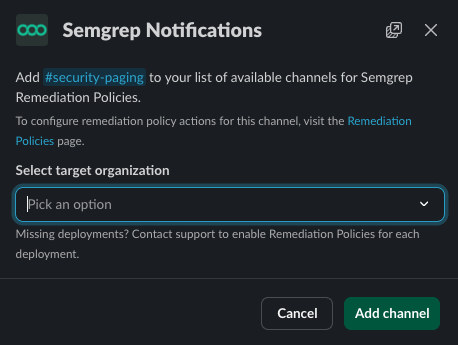 Choose an organization from the list under **Select target organization**.
Click **Add channel**. The channel is now available as an option to your remediation policies.
In Semgrep AppSec Platform, go to **Rules & Policies > Remediation**, and add a **Send a Slack message** action to a new or existing remediation policy. Ensure that you select the channel you configured in the preceding steps.
To send findings for specific projects only, set the policy's **Scope** to those projects. For more information, see [Create a remediation policy](/semgrep-appsec-platform/unified-policies/get-started#create-a-remediation-policy).
### Code and Supply Chain
To set up or subscribe to notifications for findings in your Slack workspace, perform the following steps:
In your Slack workspace, find or create a channel for Semgrep notifications.
* If you use a private channel for notifications, first invite the Semgrep app by entering the command `/invite @Semgrep` in the channel. If the app is not invited to a private channel, it cannot send notifications there.
In the selected Slack channel, enter the following command: `/semgrep_subscribe`.
Optional: Enter the name of a specific project after `/semgrep_subscribe` to receive findings for that specific project only. The project must be entered as it is shown in Semgrep AppSec Platform, typically:
Choose an organization from the list under **Select target organization**.
Click **Add channel**. The channel is now available as an option to your remediation policies.
In Semgrep AppSec Platform, go to **Rules & Policies > Remediation**, and add a **Send a Slack message** action to a new or existing remediation policy. Ensure that you select the channel you configured in the preceding steps.
To send findings for specific projects only, set the policy's **Scope** to those projects. For more information, see [Create a remediation policy](/semgrep-appsec-platform/unified-policies/get-started#create-a-remediation-policy).
### Code and Supply Chain
To set up or subscribe to notifications for findings in your Slack workspace, perform the following steps:
In your Slack workspace, find or create a channel for Semgrep notifications.
* If you use a private channel for notifications, first invite the Semgrep app by entering the command `/invite @Semgrep` in the channel. If the app is not invited to a private channel, it cannot send notifications there.
In the selected Slack channel, enter the following command: `/semgrep_subscribe`.
Optional: Enter the name of a specific project after `/semgrep_subscribe` to receive findings for that specific project only. The project must be entered as it is shown in Semgrep AppSec Platform, typically:
/semgrep\_subscribe ACCOUNT\_NAME/REPOSITORY\_NAME
Choose an organization in the list under **Select target organization**. The dialog box expands with additional options.
Optional: Set up additional filters.
* For users receiving both Semgrep Code and Semgrep Supply Chain findings: Use **Target scan** type to choose whether to receive notifications for Semgrep Code, Semgrep Supply Chain, or both.
* For Semgrep Code users only: In the **Selected Policies** field, choose the specific policies you want to receive findings for. By default, all policies are selected, including **Monitor policy**, which may result in a higher volume of notifications.
Click **Subscribe**. If you did not specify a project after `/semgrep_subscribe`, the channel is subscribed to findings from all your projects in Semgrep AppSec Platform.
Optional: To set up Slack notifications for additional workspaces, repeat steps 1 to 6. The Semgrep Slack integration is set up on a per-workspace basis.
You have successfully set up notifications for Semgrep findings. The Semgrep Slack app reports new findings after every scan but does not report findings that were previously discovered.
**SUGGESTED WORKFLOW**
In your Slack workspace, create separate channels for either policies, repositories (projects), or types of findings depending on your business or development need. This ensures that developers receive only findings that are relevant to them.
### Secrets
To set up or subscribe to notifications for findings in your Slack workspace, perform the following steps:
In your Slack workspace, find or create a channel for Semgrep notifications.
* If you use a private channel for notifications, first invite the Semgrep app by entering the command `/invite @Semgrep` in the channel. If the app is not invited to a private channel, it cannot send notifications there.
In the selected Slack channel, enter the following command: `/semgrep_subscribe_secrets`.
Choose an organization in the list under **Select target organization**.
Click **Subscribe**. You can now configure Semgrep Secrets notifications for this channel.
This channel is now ready to receive Semgrep Secrets notifications. To configure when notifications are sent, create a [**Semgrep Secrets policy**](/semgrep-secrets/policies#slack-notification-policies).
Optional: To set up Slack notifications for additional workspaces, repeat steps 1 to The Semgrep Slack integration is set up on a per-workspace basis.
## Remove notifications for findings in Slack
**NOTE**
This operation removes or unsubscribes a channel from notifications. To uninstall the Semgrep Slack App, refer to [Uninstall the Semgrep Slack App](#uninstall-the-semgrep-slack-app).
To remove a Slack channel from your remediation policies:
In Slack, enter the channel that you want to remove.
Type `/semgrep_remove_channel`.
Select the target organization.
Click **Remove channel**.
Removing a channel takes it out of your list of available channels for remediation policies and stops all remediation policy notifications to that channel.
### Code and Supply Chain
To remove or unsubscribe to notifications:
In Slack, enter the channel that you want to unsubscribe from Semgrep findings.
Type `/semgrep_unsubscribe`.
Select the target organization to unsubscribe from.
Click **Unsubscribe**.
You have unsubscribed from Semgrep finding notifications for that particular channel.
### Secrets
To remove notifications:
From the Secrets policies tab, click the **three-dot(...) button > Edit policy** for the policies that trigger notifications in this channel.
Unselect the desired channels from the policy.
Click **Save changes**.
To unsubscribe a channel:
In Slack, enter the channel that you want to unsubscribe from Semgrep Secrets findings.
Type `/semgrep_unsubscribe_secrets`.
Select the target organization to unsubscribe from.
Click **Unsubscribe**.
Unsubscribing removes this channel from your list of available channels for all Semgrep Secrets policies. You will no longer be able to create policies using this channel, and it will be removed from existing policies, stopping all notifications to this channel.
## Notification and alert de-duplication
Notifications are sent only the first time a given finding is detected.
When running a diff-aware scan, Semgrep doesn't notify you when a pull request has a finding that existed on the base branch already, even if that line is moved or re-indented.
Semgrep also tracks notifications that have already been sent, so subsequent scans of the same changes in a pull request won't result in duplicate notifications.
**NOTE**
See [Findings in CI](/semgrep-ci/findings-ci) for more information about how Semgrep tracks a finding through its lifetime.
## Uninstall the Semgrep Slack App
**CAUTION**
This removes **all** Semgrep notifications in **all** channels in your Slack workspace.
In [Semgrep AppSec Platform](https://semgrep.dev/login), go to **Settings > [Integrations](https://semgrep.dev/orgs/-/settings/integrations)**.
On the **[Integrations](https://semgrep.dev/orgs/-/settings/integrations)** page, find the Slack integration you want to remove.
Expand the **Channels receiving Semgrep notifications** section and review the channels receiving notifications.
In the related channels in your Slack workspace, use the `/semgrep_unsubscribe` command to unsubscribe from those notifications.
After completing this step for all channels, click **Remove integration** > **Remove**.
## Troubleshooting
### Not receiving any findings
The following list describes possible ways to troubleshoot findings not appearing in your Slack workspace:
* Check if you have successfully set up your notifications.
* Check if your most recent scan has findings to send.
* Check your filters.
* Check if the channel is private. You must add the Semgrep Slack App to any private channel to subscribe to notifications in that channel.
### Check notifications
To check that your notifications are set up, you can review notifications in two places:
* On the **[Integrations](https://semgrep.dev/orgs/-/settings/integrations)** page, locate your Slack integration and expand **Channels receiving Semgrep notifications**.
* In your Slack workspace, click **Semgrep** under **Apps** in the Slack sidebar and review the channels under **Notifications are being sent to the following channels.**
* To send a test notification to a channel in this list, click the **three-dot menu** > **Send Test Notification**.
### Check your filters
If you have set up any filter, such as filtering for a specific policy or project, all conditions of that filter must be present for the notification to be sent. Review your filters by following the steps in [Changing Slack notification settings](#change-slack-notification-settings).
### Permissions not up-to-date
You may receive a message from Semgrep Slack app stating that your token does not have up-to-date permissions. Clicking the link provided in the message to update the permissions typically resolves this issue.
However, if after updating the token, you still receive the same message, perform the following steps to revoke and refresh your access token:
In your Slack workspace, click **Semgrep** under **Apps** in the Slack sidebar.
Click Uninstall. This revokes your token.
Go to Semgrep AppSec Platform > Settings > Integrations.
Find the Slack entry for the workspace you revoked in step 2 and click **Refresh Token**.
Follow the steps in the authentication flow to complete the token refresh.
You have refreshed your access token and updated your permissions.
### Fixing `dispatch_failed` error
There are many possible causes for this error. Try the following fixes:
* Re-enter your last command or operation after a few minutes.
* Uninstall, and then reinstall your Semgrep Slack integration.
### Fixing `operation_timeout` error
This error occasionally appears due to connection or service issues. To fix this issue, retry your last command or operation after a few minutes.
## Slack permissions
The following table describes the purpose for each permission required to use the Semgrep Slack app.
| Permission | Slack description | Purpose |
| :-------------------------------------------------------------------------------- | :--------------------------------------------------------------------------------------------- | :-------------------------------------------------------------------------------------------------------------------------------------------------------------------------------------------------------------------------------- |
| **[app\_mentions:read](https://api.slack.com/scopes/app_mentions:read)** | View messages that directly mention @Semgrep in conversations that the app is in. | Enables the Semgrep Slack app to respond when users mention it in the chat. |
| **[channels:read](https://api.slack.com/scopes/channels:read)** | View basic information about public channels in a workspace. | Basic channel information such as channel\_id is used to ensure that Semgrep findings (results) are sent to the appropriate channel. |
| **[chat:write](https://api.slack.com/scopes/chat:write)** | Send messages as @Semgrep. | Enables the Semgrep Slack app to send findings to channels. |
| **[chat:write.customize](https://api.slack.com/scopes/chat:write.customize)** | Send messages as @Semgrep with a customized username and avatar. | Helps users identify Semgrep Slack app messages through the use of an image and username. |
| **[chat:write.public](https://api.slack.com/scopes/chat:write.public)** | Send messages to channels @Semgrep isn't a member of. | Enables users to invoke Semgrep Slack app features in any public channel using the slash command. |
| **[commands](https://api.slack.com/scopes/commands)** | Add shortcuts or slash commands that people can use. | Enables the Semgrep Slack app to register custom slash commands such as /semgrep\_subscribe used for notification subscription. |
| **[emoji:read](https://api.slack.com/scopes/emoji:read)** | View custom emoji in a workspace. | Allows Semgrep to support a workspace's custom emojis. |
| **[im:write](https://api.slack.com/scopes/im:write)** | Start direct messages with people. | Allows users to interact with the Semgrep Slack app and use the slash commands in direct messages. |
| **[links:write](https://api.slack.com/scopes/links:write)** | Show previews of URLs in messages. | Enables Semgrep Slack app to include links in messages. |
| **[users:read](https://api.slack.com/scopes/users:read)** | View profile details about people in a workspace. | Enables Semgrep Slack app to correctly address users in messages. |
| **[users:write](https://api.slack.com/scopes/users:write)** | Set presence for Semgrep. | Used by the Semgrep Slack app to interact with the workspace and enables users to add the Semgrep Slack app to relevant channels. |
| **[workflow.steps:execute](https://api.slack.com/scopes/workflow.steps:execute)** | Add steps that people can use in Workflow Builder. | Enables Semgrep to make use of modals and drop-down boxes when a user creates or updates their notifications. |
| **[groups:read](https://api.slack.com/scopes/groups:read)** | View basic information about private channels that your Slack app has been added to. | Semgrep Slack app uses channels\_id\_changed to update its notifications configuration if the channel that receives findings is updated. This ensures that you are able to receive findings ever renaming a channel. |
| **[team:read](https://api.slack.com/scopes/team:read)** | View the name, email domain, and icon for workspaces your slack app is connected to. | Semgrep Slack app uses team\_name\_changed to update its notifications configuration if the team name is updated. This ensures that you are able to receive findings notifications even after renaming your team. |
| **[channels:read](https://api.slack.com/scopes/channels:read)** | View basic information about public channels in a workspace. | Enables Semgrep Slack app to monitor if channels that receive Semgrep findings have been deleted or archived. |
#### Additional resources
* [https://api.slack.com/apps](https://api.slack.com/apps)
* [https://api.slack.com/messaging/webhooks#enable\_webhooks](https://api.slack.com/messaging/webhooks#enable_webhooks)