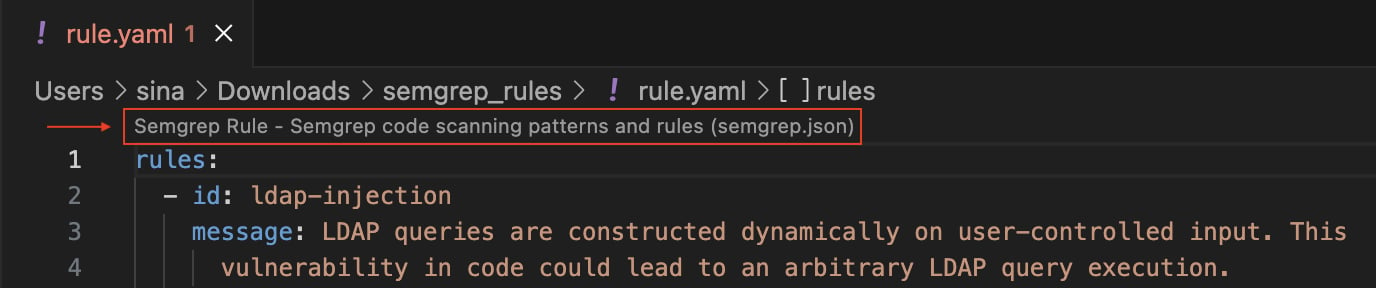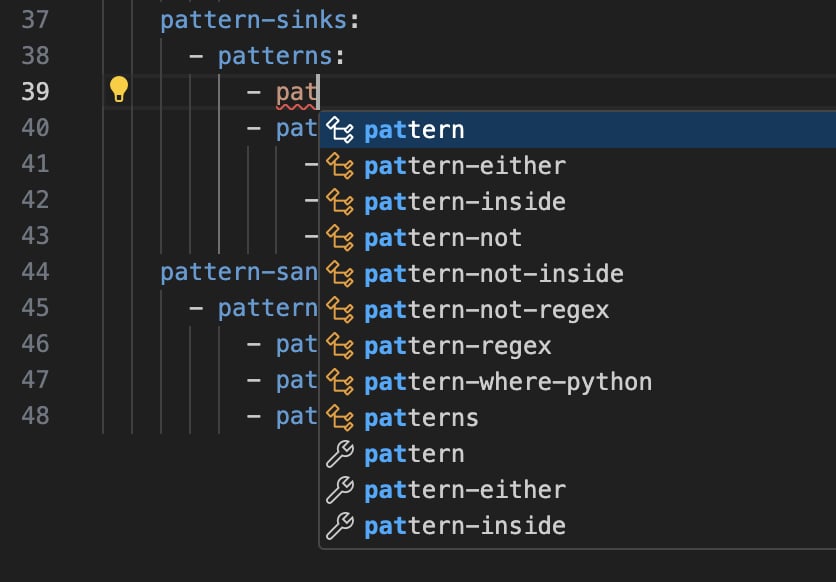
Add the Semgrep rule schema in VS Code
Adding the Semgrep rule schema in VS Code requires two steps:1
Install the YAML Language Support extension by Red Hat
2
Associate the Semgrep rule schema
Install the YAML Language Support extension by Red Hat
You can install the “YAML” extension authored by “Red Hat” directly in VS Code or by going to the Visual Studio Marketplace and installing it from there. In VS Code, go to the Extensions pane and search foryaml. This should yield the correct extension as the top result. However, please verify that you are installing the correct extension by ensuring it is the same as this one.
Associate the Semgrep rule schema
Once the extension is installed, associate the Semgrep rule schema with the Semgrep YAML rule definitions you are working on in VS Code using one of the following methods:- Directly in the YAML file
- Using
yaml.schemasin your VS Codesettings.jsonfile
Associate a schema directly in the YAML file
To associate the schema directly within a Semgrep YAML rule file, include the following line at the top of the file:Associate a schema to a glob pattern via yaml.schemas
Before proceeding, we recommend reading the extension overview as a supplement to this article to better understand how YAML schemas are handled by the extension.
To associate the Semgrep rule schema via yaml.schemas in your VS Code settings.json file (on macOS), go to:
Code -> Settings -> Settings -> Extensions -> YAML
In the YAML extension settings, scroll down to Yaml: Schemas and click Edit in settings.json, as shown below:
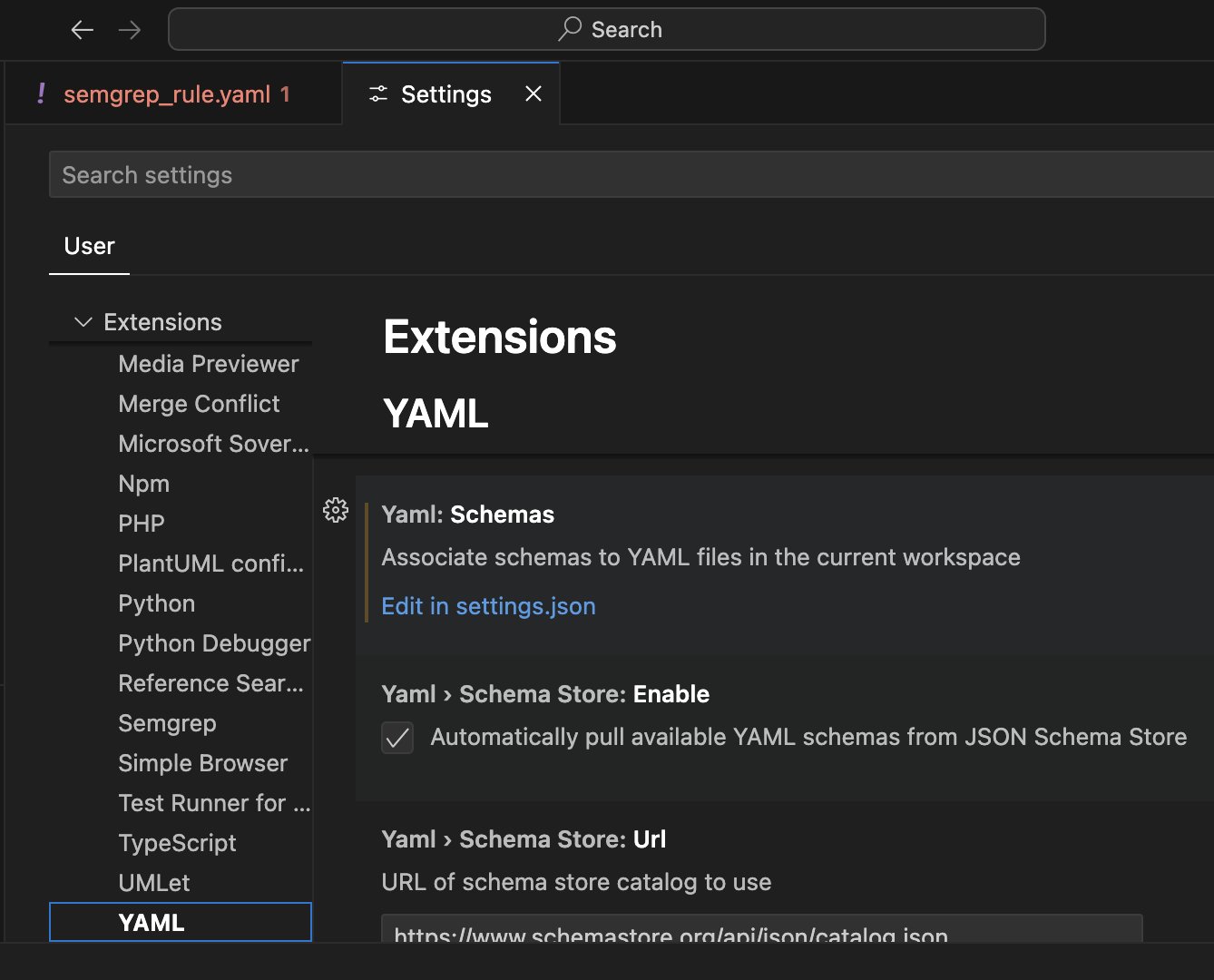
settings.json file with an empty yaml.schemas object ready to be defined. For example, consider the following yaml.schemas definition:
:) with files matching the glob pattern on the right. The glob pattern matches any .yaml file located in a directory structure that matches Downloads/semgrep_rules/. The desired glob pattern differs for varying operating systems and should reflect where you are storing Semgrep YAML rule files.
After completing the configuration for yaml.schemas, open a Semgrep rule YAML file to verify that a notice shows at the top similar to this one: