

Access Semgrep Editor
1
Sign in to Semgrep AppSec Platform.
2
Go to Rules & Policies > Editor.
3
Do any of the following steps:i. To create a new rule, click on the (+) plus sign or Create new rule button.ii. To open any rule you’ve recently edited, select it from the Recent list.iii. To view a sample rule, select it from the Examples list. The rule renders within the Editor.iv. To start a tutorial or read the docs, select it from the Learn list. This navigates you away from the Editor.
View a rule
Semgrep Editor is composed of three panes and a top menu. LibraryView and open rules owned by your organization or available through the Semgrep Registry. Rule editor
Enter your rule’s YAML in this pane. This pane supports both structure and advanced modes. This pane also contains metadata editing functionality in Structure mode, and match review functionality in Advanced mode. Sample code
Enter test code in this pane and click Run to verify that the rule performs as intended. A matches panel appears after Semgrep runs to display matches and tests. Top menu
Save, share, and add your rule to one of your policies.
Group Registry rules
By default, Semgrep Registry rules are grouped by directory. Most of these directories correspond to languages. The Library can also be grouped by rulesets, which are rules sorted by category, such as security, best practices, and frameworks. To group by ruleset, right-click on the empty space on the registry’s name entry and select Group by ruleset.Create a rule
To create a rule, click Create rule on the splash page or the (+) sign next to the Library label. Semgrep Editor offers two rule-writing modes: Structure mode (beta)Structure mode is a hybrid interface that offers guidance for rule writing while supporting additional features the way advanced mode does. Advanced mode
Advanced mode provides the minimum required YAML keys for a Semgrep rule. To complete the rule, you must fill in additional keys, such as pattern operators or metadata.
Write a rule using structure mode (beta)
Structure mode is a UI-based rule-writing editor that guides you through the process of writing a rule. Structure mode features include:- Match badges: Match badges are visual indicators paired with pattern operators. The match badge shows the number of matches associated with each pattern operator.
- Automatic indentation: When adding a new pattern to a nested operator such as
patternsorpattern-either, the editor automatically indents sub-patterns correctly. - Differentiation between patterns and pattern constraints: A pattern is one of six different operators that describes zero or more locations in a rule. These include
pattern,any,all,inside,regex, andnot. You can combine these in prescribed ways, such asanyandall, using range union and intersection, but they still define ranges. Pattern constraints describe Boolean constraints that must be met for a match to occur. If the constraint doesn’t hold, then the ranges determined by the pattern operators aren’t applicable. - Interoperability with advanced mode: You can write a rule using structure mode and view or export it in YAML, or you can paste in the YAML for a rule and edit it with structure mode.
- Drag and drop: You can move around the elements of a rule using drag and drop.
- Pattern disabling: You can toggle individual patterns on or off for actions like testing.
1
Ensure that you are in structure mode.
2
Select your first operator. Options include:
pattern, any, all, inside, regex.3
Specify the pattern if applicable. Example:
print("...").4
Optional: specify a constraint by clicking on the filter icon.i. Specify whether the constraint is
focus, comparison, or metavariable.ii. Provide the pattern for the code for which the constraint should be applied.5
Select the child operator and specify its pattern, if applicable. You can add as many child elements as you need. These child elements can also have their own constraints.
6
Optional: Expand the Rule info panel, and update the following fields:i. Rule ID: the name of the ruleii. Language: the language of the code for which this rule runs againstiii. Severity: the severity level of the finding if this rule generates a matchiv. Message: the message to print with the finding if this rule generates a match
7
Click Run or press Ctrl+Enter (⌘+Enter on Mac).
1
Ensure that you are in structure mode, and that you have selected taint.
2
Define your Sources.i. Select your first operator. Options include:
pattern, any, all, inside, regex.ii. Specify the pattern if applicable. Example: print("...").iii. Optional: specify a constraint by clicking on the filter icon. a. Specify whether the constraint is focus, comparison, or metavariable. b. Provide the pattern for the code for which the constraint should be applied.3
Define your Sinks.i. Select your first operator. Options include:
pattern, any, all, inside, regex.ii. Specify the pattern if applicable. Example: print("...").iii. Optional: specify a constraint by clicking on the filter icon. a. Specify whether the constraint is focus, comparison, or metavariable. b. Provide the pattern for the code for which the constraint should be applied.4
Add .i. Select your first operator. Options include:
pattern, any, all, inside, regex.ii. Specify the pattern if applicable. Example: print("...").iii. Optional: specify a constraint by clicking on the filter icon. a. Specify whether the constraint is focus, comparison, or metavariable. b. Provide the pattern for the code for which the constraint should be applied.5
Optional: Expand the Rule info panel, and update the following fields:i. Rule ID: the name of the ruleii. Language: the language of the code for which this rule runs againstiii. Severity: the severity level of the finding if this rule generates a matchiv. Message: the message to print with the finding if this rule generates a match
6
Click Run or press Ctrl+Enter (⌘+Enter on Mac).
Write a rule using advanced mode
Advanced mode is a YAML editor that allows you to write rules using Semgrep syntax.RULES SYNTAXRefer to Rule syntax for all possible fields and values to create a rule.To quickly learn Semgrep patterns and syntax, explore the Editor’s library of rules from the public Rule Registry. Rules from the Registry can detect OWASP vulnerabilities, best practice violations, and security issues for a wide variety of languages and frameworks. Semgrep Editor enables you to adapt these rules for your own organization’s use by forking them.
1
Ensure that you are in advanced mode.
2
Click the plus sign and select a template. The New rule template includes the minimum keys required for a Semgrep rule, but there are additional templates that can help you write more complex rules:
- -comparison: demonstrates how to use the
metavariable-comparisonkey - -pattern: demonstrates how to use the
metavariable-patternkey - Dataflow analysis: demonstrates how to leverage dataflow analysis through
pattern-sources,pattern-sinks, andpattern-sanitizers. - Dataflow analysis with taint labels: demonstrates how to define the sources you want to track and how data must flow
- HTTP validators: Demonstrates how to write Semgrep Secrets rules that include validators
3
Modify the template, adding and changing the keys and values needed to finish your rule.
4
Optional: Click Metadata to update and enter additional metadata fields.
5
Click Run or press Ctrl+Enter (⌘+Enter on Mac).
Run and test a rule
After you write a rule, testing it ensures it performs as expected. To test a rule:1
Create at least one true positive: a code sample intended to match the rule.
2
Above this potential match, create a comment, followed by a space (
), followed by ruleid:RULE_ID which specifies the rule that should match. In the preceding example, this is // ruleid:hardcoded-conditional.3
Create at least one true negative: a code sample intended not to match the rule.
4
Above this non-match, create a comment followed by a space (
), followed by ok:RULE_ID. For example, // ok:hardcoded-conditional.5
Optional: add more code samples with their corresponding annotations.
6
Click Run. Semgrep detects the annotations and validates the rule based on your tests.
Code search (beta)
Code search allows you to test a Semgrep rule by running it against one or more GitHub repositories or projects instead of just a few lines of test code. Its results highlight all instances of matching code in those target repositories, allowing you to see whether your rule works as intended or not. This rapid feedback can help you develop more accurate and effective rules. The Semgrep Network Broker does not support code search at this time.Prerequisites
- Code search is currently available to all paying customers of Semgrep Code.
- You must grant Semgrep code access by installing the private Semgrep GitHub app if you would like to run code search against your repositories. Otherwise, you can run code search against public repositories.
Install the private Semgrep GitHub app to enable code access
The private app must be installed by a GitHub organization administrator. If you are not an admin, an installation link is provided for you to share with your GitHub admin.1
Click Settings > Source Code Managers.
2
Click Register App.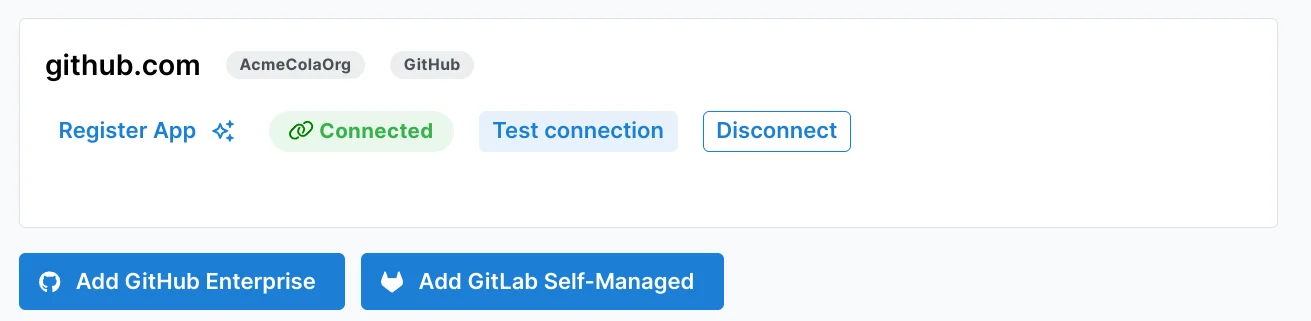
3
Follow the steps to install a private GitHub app in your org. Ensure that you enter your exact GitHub organization name and the correct type of GitHub account, typically Organization.
4
Click Register GitHub App.
5
If you are an admin on the GitHub organization, click Continue. Otherwise, share the provided link with your GitHub administrator.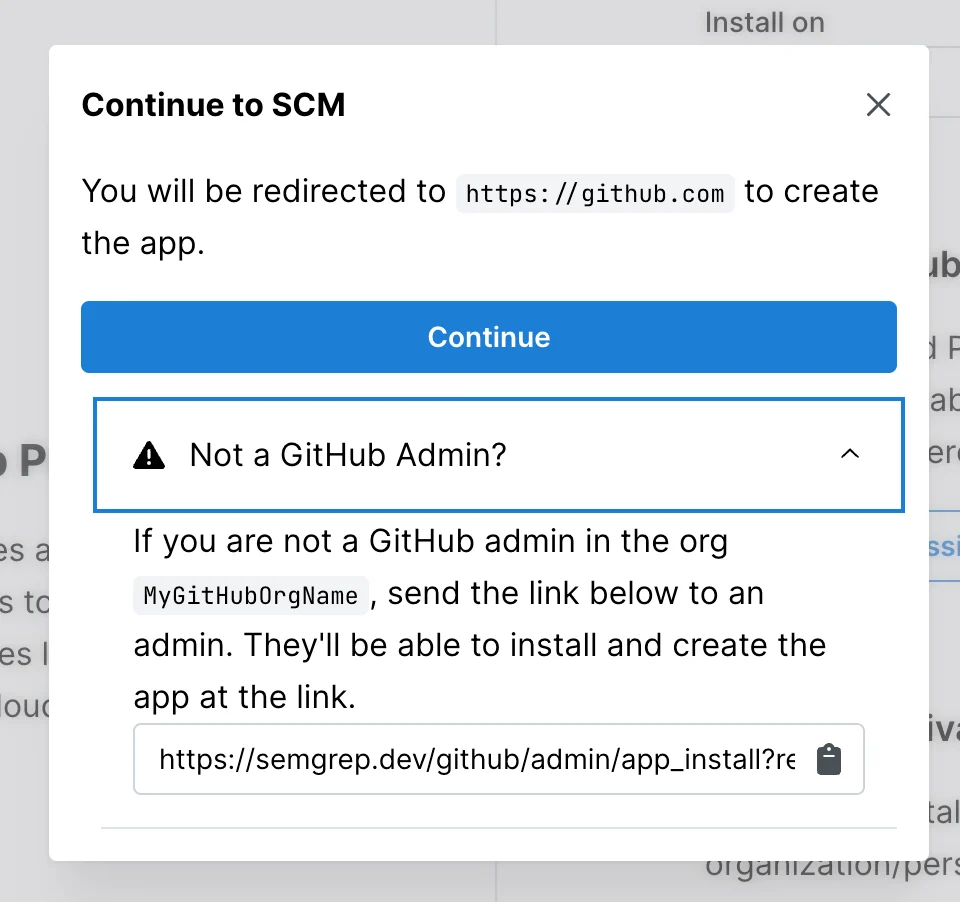
6
Follow the prompts in GitHub to install the private app. Ensure that you grant access to the repositories you want to scan.
INFOCode search currently works with repositories or projects hosted by GitHub.
1
Sign in to Semgrep AppSec Platform.
2
Go to Rules > Editor, and open up the rule you want to test.
3
In the code panel click live code.
4
Select the repositories against which you want the rule to run. You can use the search bar to narrow down the list of repositories shown. Semgrep currently supports both public repositories and private repositories available to your Semgrep organization.
5
Optional: If you’re running your rule against multiple repositories, select the Limit to first result per repository checkbox to see only the first result per repository. This speeds up your search and allows you to receive your results faster.
6
Click Run to start the search.
7
When the search completes, you’ll see a list of results where the rule generated a finding when run against your codebase. The links, which include filenames and line numbers, take you to GitHub, where you can view and remediate the issue.
Set a rule’s visibility and share a rule
Upon saving, a rule’s visibility is private by default. A private rule is visible only to members within an organization.- To share a rule outside your organization, click Share > Public > Confirm. If you want to share this specific version of the rule, you can also toggle Permalink. This provides a shortlink to this version of the rule, which will not change if the rule is modified.
- To share a private rule with those who can access it, click Share and copy the URL link.
Rename a rule
To rename a rule, enter the new name in the YAML editor’sid field. Then, save the rule by entering Ctrl+S (⌘+S on Mac) or clicking the Save button.
Delete a rule
To remove a private rule, follow these steps:1
In the Semgrep Editor, find the private rule to delete under the Library tab. Private rules are usually stored in the folder with the same name as your Semgrep AppSec Platform organization.
2
Do one of the following:
- Open the rule, click the three vertical dots, then click Delete.
- Right-click the rule file in the navigation, then click Delete.
3
Review the confirmation modal, which lists the policies that use the rule, then confirm the deletion.
Add a rule to a policy
The Detection Policies page displays information about the rules that Semgrep uses to scan your project’s code. To add a rule from the editor to a policy:1
Ensure you’re signed in to Semgrep.
2
Go to Rules & Policies > Editor, and open the rule you want to add to a policy.
3
Click Add to detection > Add to Code detection policy.
4
Once the rule is added to a detection policy, Semgrep uses it for subsequent full and diff-aware scans. To learn how to modify any of Semgrep’s scanning behavior, see Manage detection policies.
Organize private rules
All private rules for an organization are saved to the organization’s folder. To further organize rules, consider organizational naming conventions to facilitate searching for and identifying rules. Useful naming conventions might include internal team, rule language, or vulnerability category.Semgrep Registry rules
The Semgrep Registry is a community-driven repository of rules. These rules can detect OWASP vulnerabilities, best practice violations, and security issues for various languages and frameworks. You can fork an existing rule to use as a starting point for writing your own.Write a new rule by forking an existing rule
One way to create new rules is to fork an existing rule in the Semgrep Registry and modify it to meet your software and business requirements. For example, Semgrep’s Javacrypto ruleset prohibits the use of weak hashing algorithms SHA-1 and MD5. However, your organization also prohibits the use of other hash functions as part of its standards or security compliance. The following steps illustrate the process of forking an existing use-of-sha1 rule and changing it to forbid MD2 hashes.
1
Use the search bar to find relevant rules. For this example, you can search for rules using 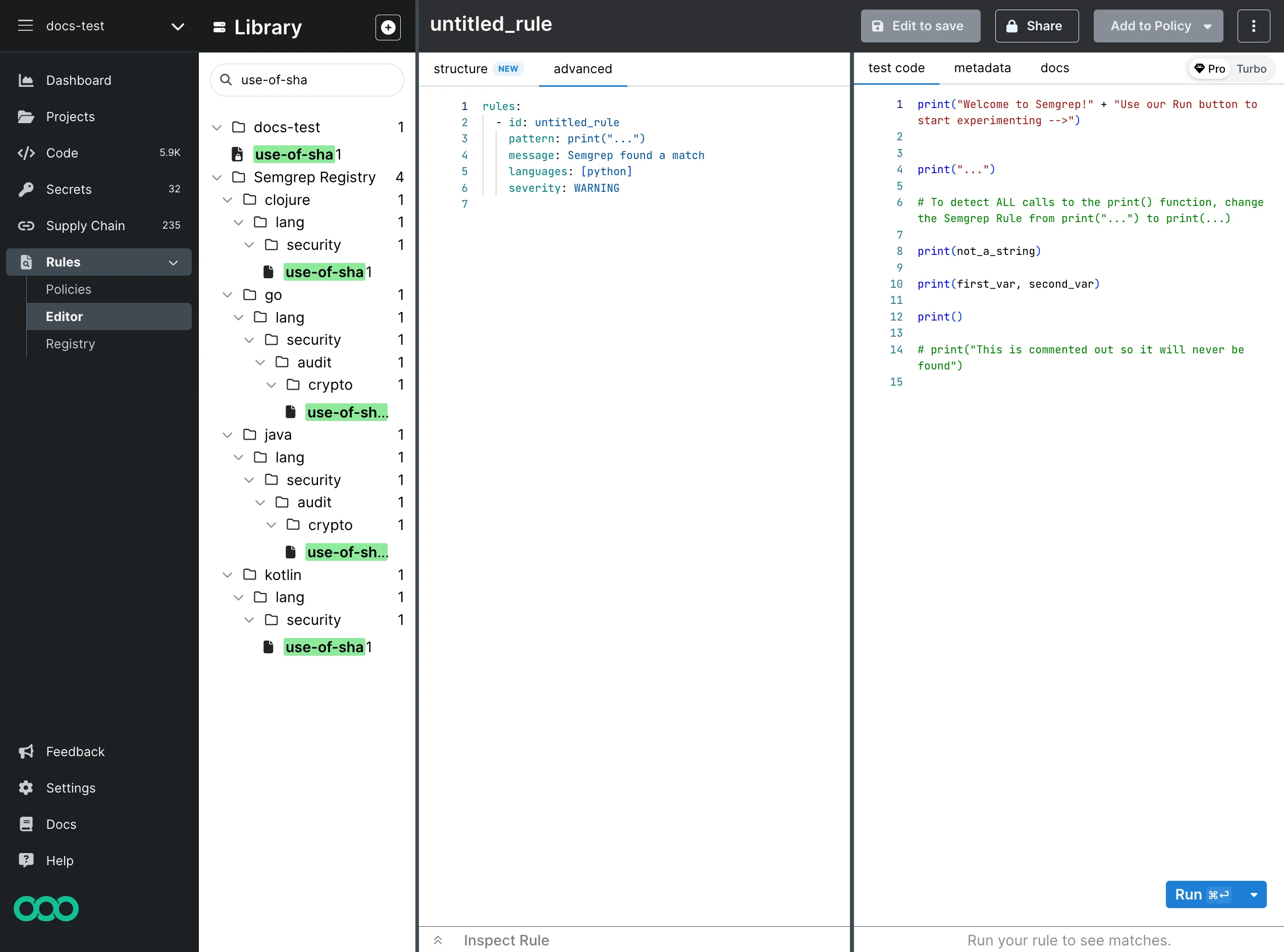
SHA1.2
Under java > lang > security > audit > crypto, click use-of-sha1 to load the rule. You cannot directly edit the rules in Semgrep Registry, so click Fork to make a copy.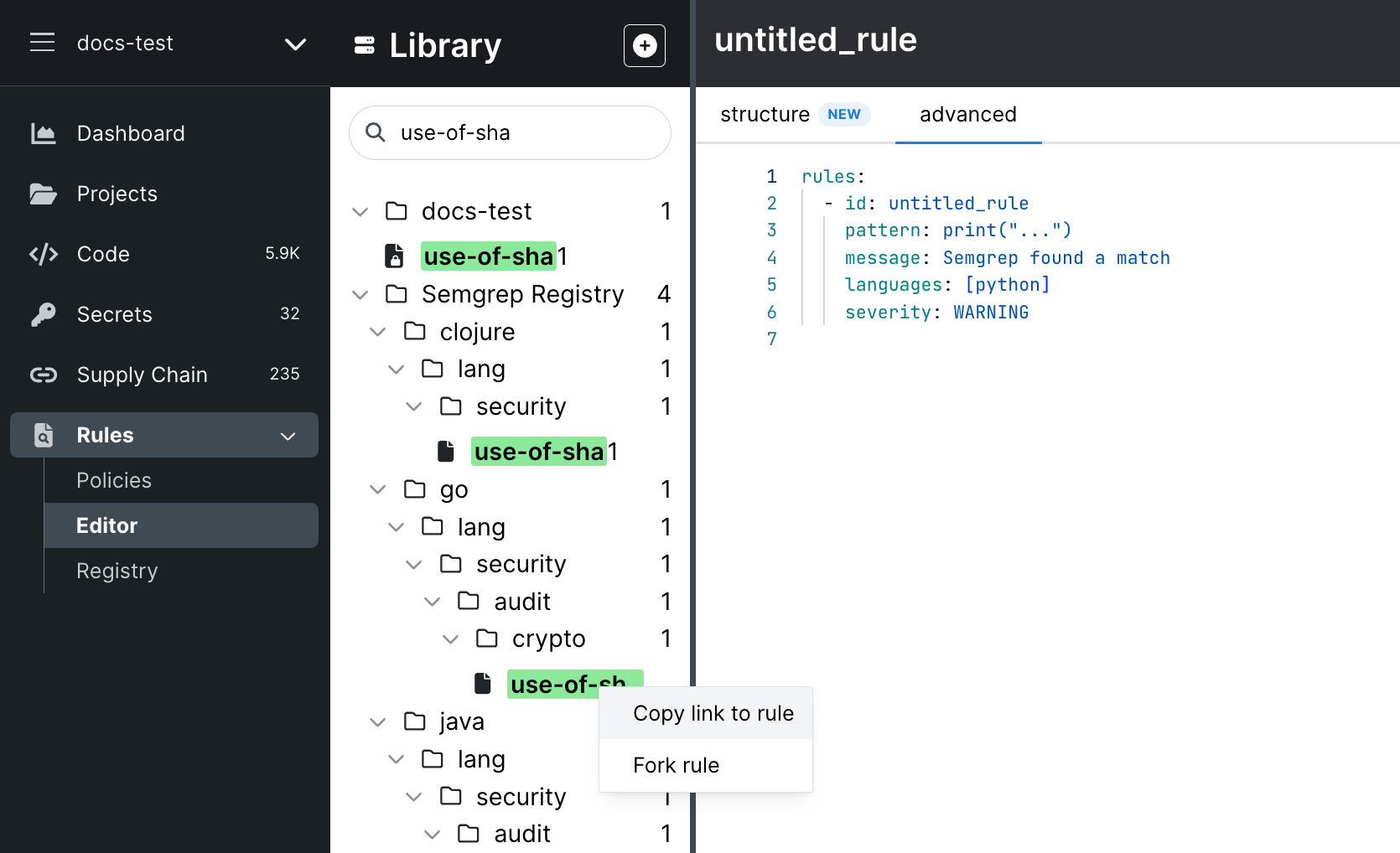
3
Semgrep copies the rule to your organization’s set of rules.
4
Edit the rule.
5
Update your test cases.
6
Click Run to test and validate your rule.
7
When you finish your changes, click Save.
SHA-1 and MD5, has been modified to find uses of MD2 and the severity of such findings is increased from WARNING to ERROR.
Contribute to the Semgrep Registry
INFOFor general contributing guidelines, see Contributing rules.
- Include test cases for both a true positive and a true negative. See Tests for more details.
- Include a descriptive rule message. See Rule messages for more information.
- Include metadata fields. See Semgrep registry rule requirements for more information.
1
Click Share.
2
(Optional) Click Publish to Registry.
3
Fill in the required and optional fields.
4
Click Continue, and then click Create PR.