1. Check the results from your most recent full scan
Semgrep maintains a record of the dependencies in your project that is updated whenever a full scan runs. As soon as you have reason to be concerned, check this record to see if those packages and versions were present in your environment at the time of the scan. You can do this in Semgrep AppSec Platform using the Dependencies tab and its dependency search functionality or through the Semgrep API.Find malicious versions of packages with dependency search
The dependency search allows you to search:- For a package using its name, such as
gitdb2 - For a specific version of a package
- For a range of versions, such as
tarversions between 4.0 and 5.0
1
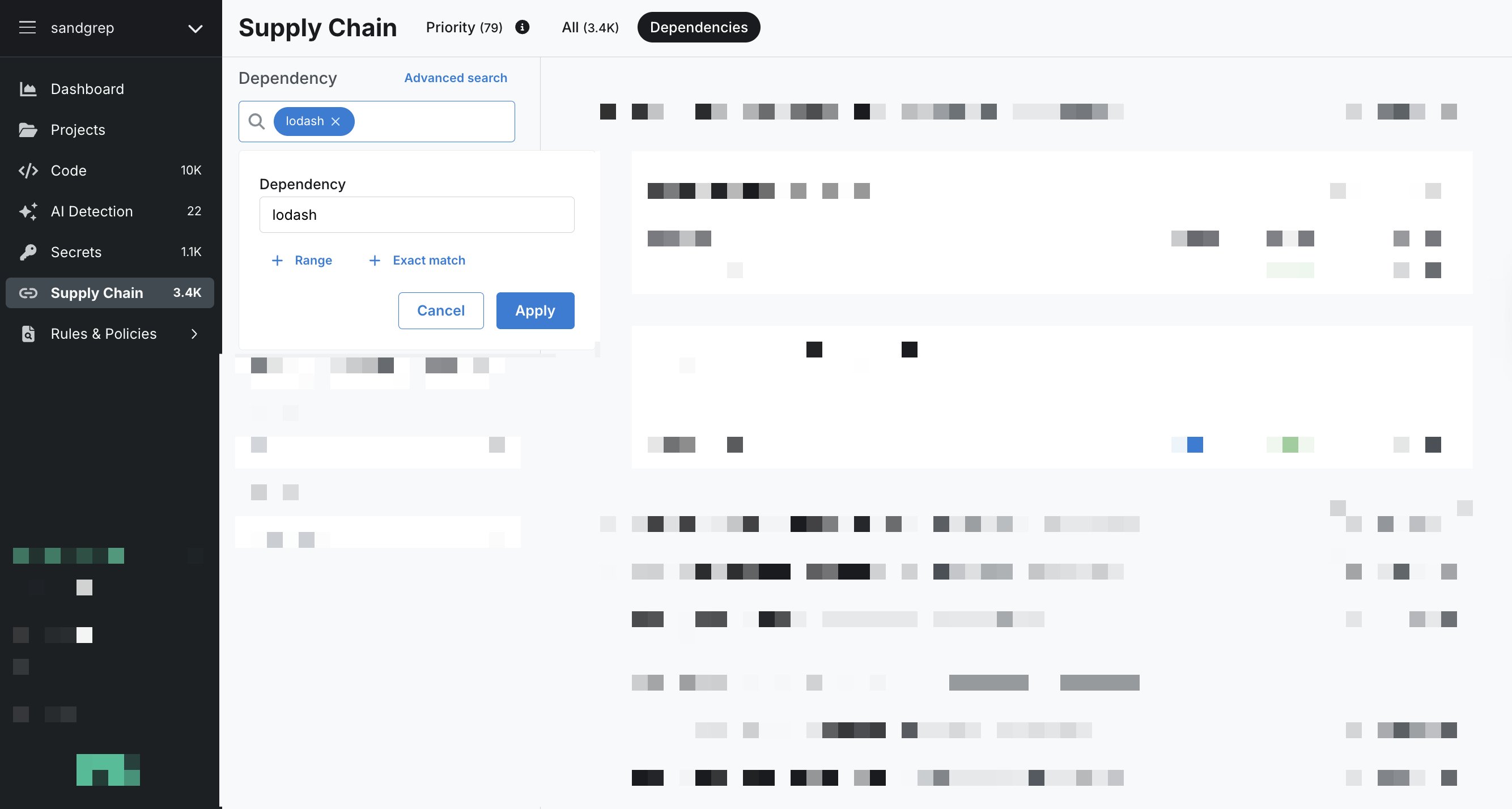
Enter the dependency name and press Enter or Return. This returns a list of matches, but you can then filter your results further by version number:i. Click the name of your dependency to open the Dependency dialog:
ii. To search for a specific version of a package, click Exact match, then enter the version number.
iii. To search for a range of versions, click Range, then enter the minimum and maximum versions.
iv. Click Apply to save your changes and see your results.
ii. To search for a specific version of a package, click Exact match, then enter the version number.
iii. To search for a range of versions, click Range, then enter the minimum and maximum versions.
iv. Click Apply to save your changes and see your results.
1
Click Advanced search.
2
Enter the Dependency name.
3
To specify a version number, click Exact match. For a range, click Range and provide the minimum and maximum versions.
4
Optional: to search for a specific version of a package, click Exact match, then enter the version number.
5
Optional: to search for a range of versions, click Range, then enter the minimum and maximum versions.
Find malicious versions of packages using the Semgrep API
You can use the Semgrep API to find matching malicious package versions in your projects using the following endpoints:List dependencies
Use this endpoint to search for specific packages and versions across your deployment. You can filter by ecosystem and specify version ranges or exact versions.Create a new SBOM export job
Use this endpoint to generate a Software Bill of Materials (SBOM) for a specific repository. This is a multi-step process: first create an export job, then poll for its completion to retrieve the download URL. Step 1: Create the export job2. Verify that your next scan includes rules for the incident
For all major security incidents, the Semgrep Security Research team responds within one business day, typically within four hours, and delivers rules to all customer accounts to check for malicious package versions. Due to time zones, holidays, and the sometimes subjective nature of incident severity, contact Semgrep support to verify that we are actively working on a rule in response to a malware incident. Otherwise, wait for a notification from Semgrep through regular channels, such as Slack, that the rules related to the incident have been deployed.3. Initiate scans on potentially affected projects with Semgrep rules
If the malicious version of the dependency was introduced after the scan, your projects could be affected even if the most recent scans showed no findings. Furthermore, running a full scan with Semgrep rules provides clear visibility into affected repositories and branches across all scanned code. See View results from your Semgrep scans for more information.Initiate scans with Semgrep Managed Scanning
If you’re using Semgrep Managed Scans, you can choose to run full scans on any potentially affected repositories manually:1
Go to the Projects page in Semgrep App Platform.
2
Select the projects of interest.
3
Click Run a new scan > Rule-based detection to start scans on the repositories that may be affected. For example, in an
npm package compromise, Semgrep recommends scanning any project that may contain JavaScript.
Initiate scans in your CI/CD pipelines
If you’re running scans in your CI/CD pipelines, manually trigger a Semgrep scan of any projects that may be impacted.Initiate a local scan
If you have large repositories or difficulty accessing your CI/CD system, it may be most efficient to run a local scan. In the directory where you want to run the scan, choose one of the following commands:- Run
semgrep ci --supply-chainif the repository is checked out using Git. This uploads findings to Semgrep AppSec Platform. Note: to view findings in the Semgrep AppSec Platform, you must be logged in before running a scan. Log in by runningsemgrep login. - Run
semgrep scan --config supply-chain .if you want to scan without a Git checkout. In this mode, findings are available for local review and are not sent to the Semgrep AppSec Platform.
Scan results
Regardless of the method you use to scan your project, the findings generated are, by default, of Critical severity and Always Reachable. Any workflows or automation set up using Supply Chain policies or a ticketing system such as Jira are automatically triggered by these findings, so notifications are sent to developers immediately.4. View results from your Semgrep scans
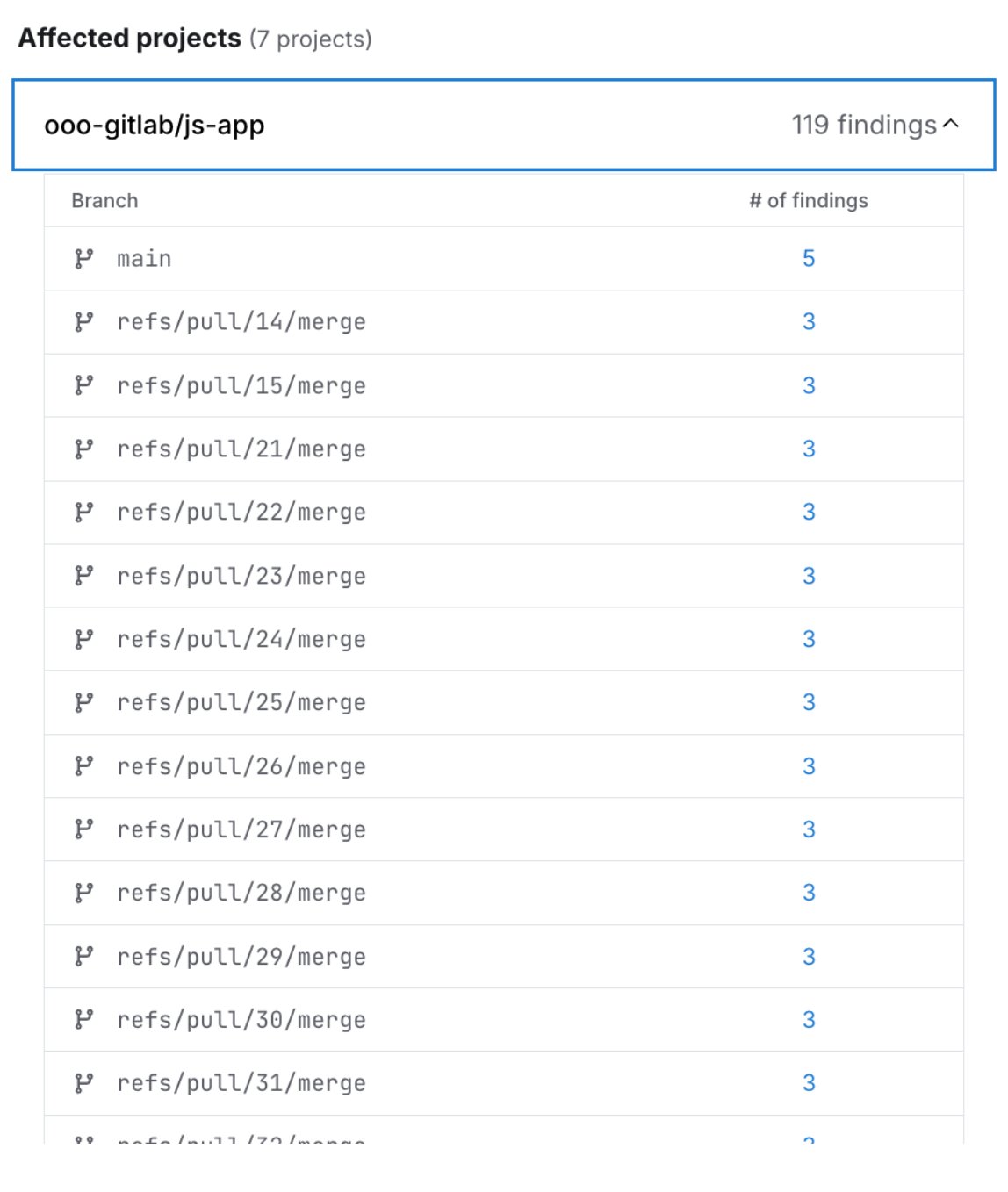
Semgrep AppSec Platform displays all affected projects and their findings after your scans complete using the new rules. To see this information:1
2
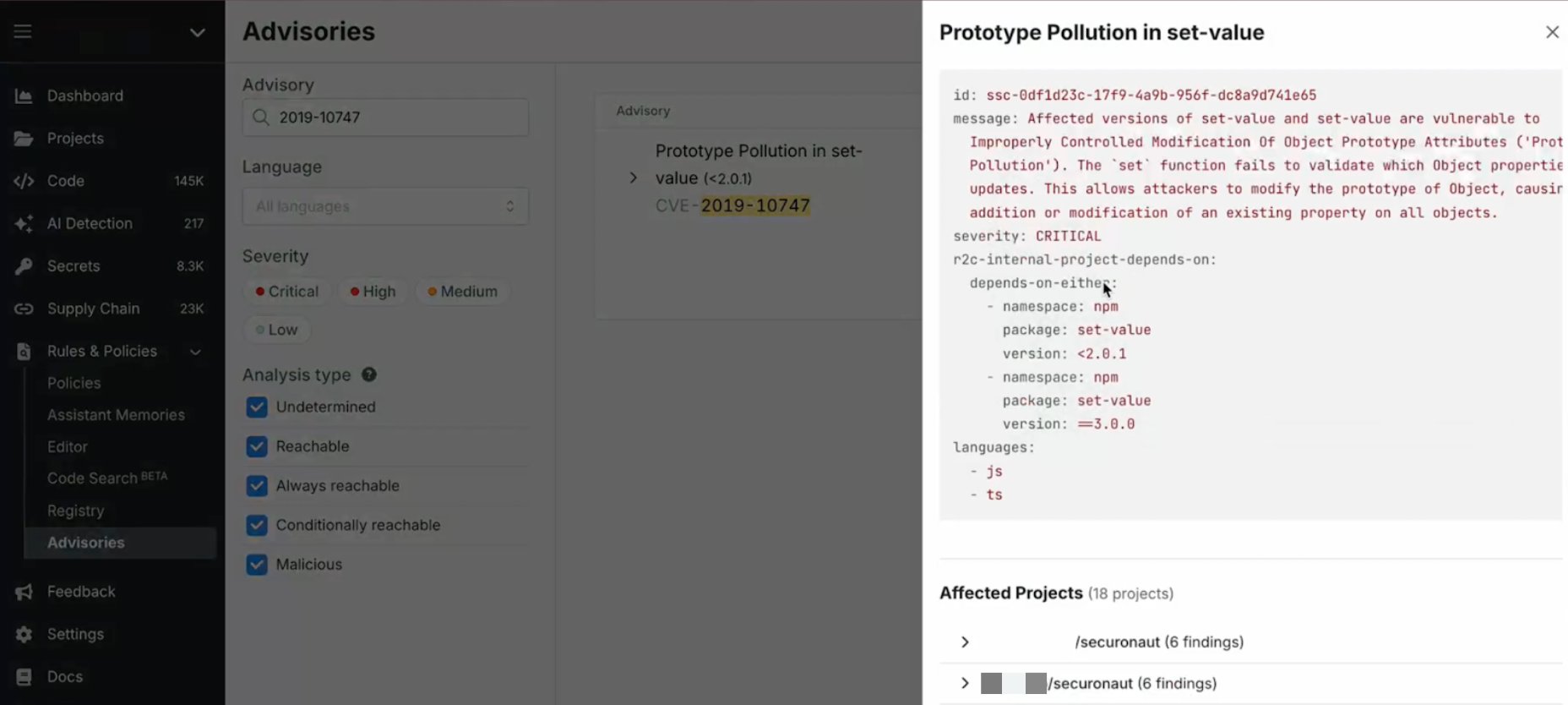
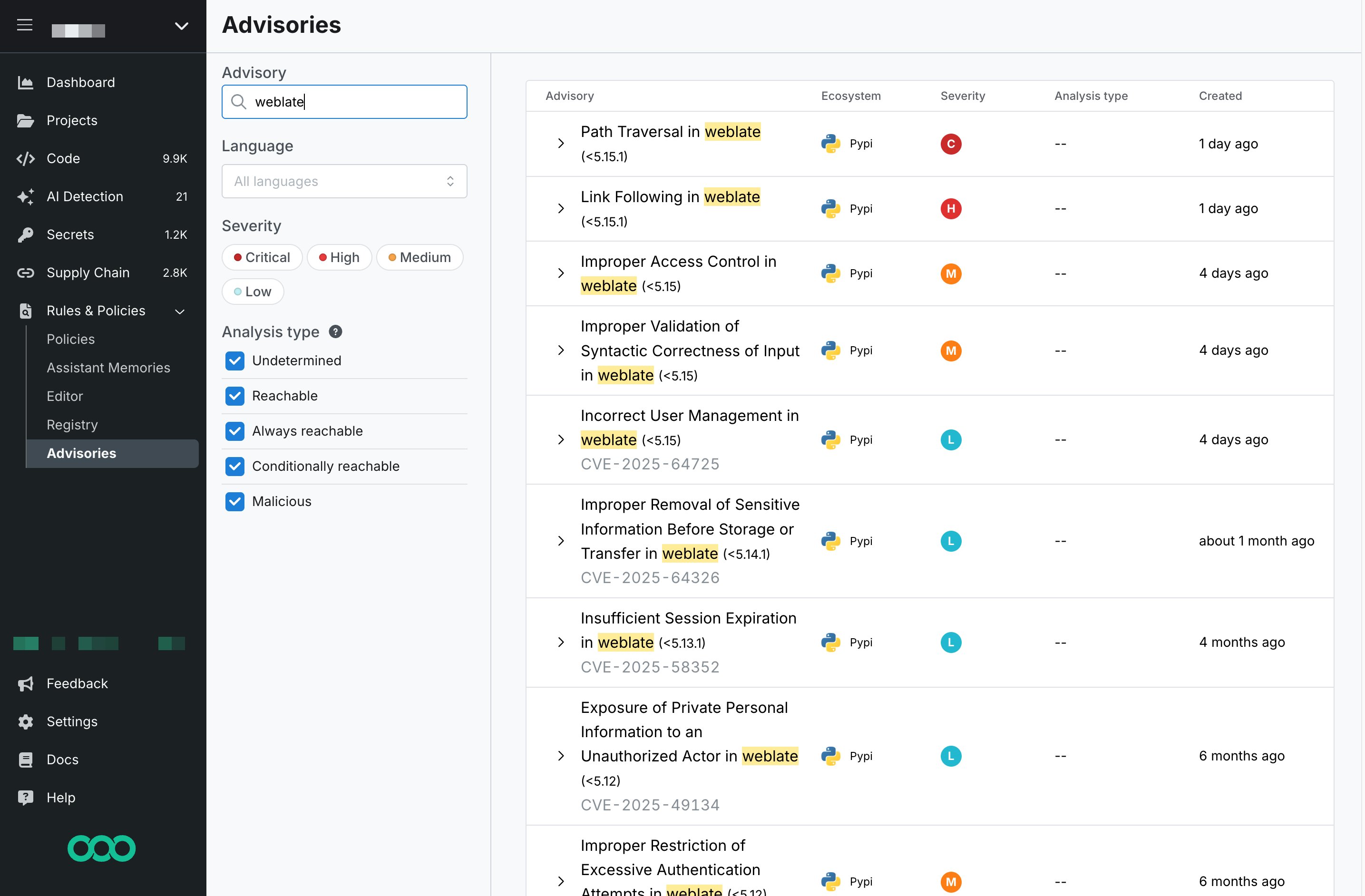
Using the Advisory filter, provide the relevant CVE or keywords. If a CVE ID hasn’t been assigned, use the ID provided by Semgrep.
3
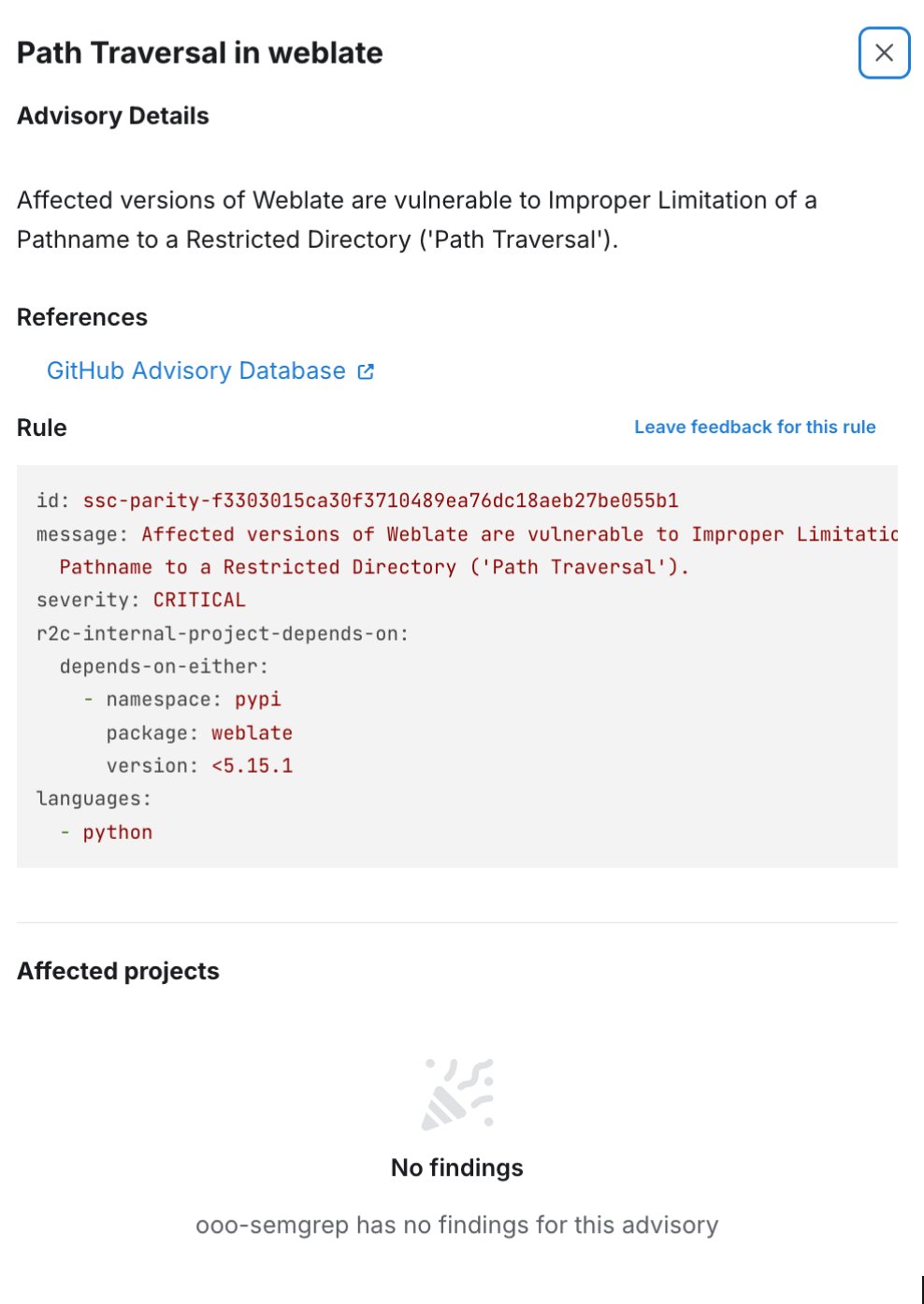
Click the advisory in the results list to open up the Advisory Details dialog.
4
Go to Affected projects.