Search, filter, and sort findings in Semgrep AppSec Platform
Semgrep AppSec Platform provides you with an overview of the findings identified by Semgrep Code, Supply Chain, and Secrets. Each product-specific page provides you with filters to narrow down the list of findings shown to you. For example, you can filter for Semgrep Code findings that are flagged as false positives, or you can filter for Semgrep Supply Chain findings based on CVE.
Learn more about the filters Semgrep offers using the following articles:
Semgrep Code filters
Supply Chain filters
Secrets filters
The following sections of this article explain how you can use filters to identify a specific subset of findings.
Identify Semgrep Code findings flagged as false positives
Sign in to Semgrep AppSec Platform, and navigate to Code. You can view findings with a status of Ignored > False positive from either the default Production backlog view or the Pre-production view. The Production backlog displays all Semgrep Code findings, while Pre-production displays the findings about which Semgrep left comments.
Identify Semgrep Code findings flagged by Multimodal as false positives
The Autotriage filter lists findings that Semgrep Multimodal evaluated as likely false positives. This includes both:
Rule-based findings, which Semgrep automatically moves to the Provisionally ignored status when Multimodal flags them as false positives.
AI-powered detection findings, which remain Open even when Multimodal flags them as false positives. AI-powered detection findings are not automatically moved to Provisionally ignored, so you must use the Autotriage filter to find them.
This guide walks you through finding the specific rule ID in Semgrep, then applying it as a filter. You can then combine this filter with other filters, such as Projects or Status.This method can be used for Semgrep Code and Supply Chain.
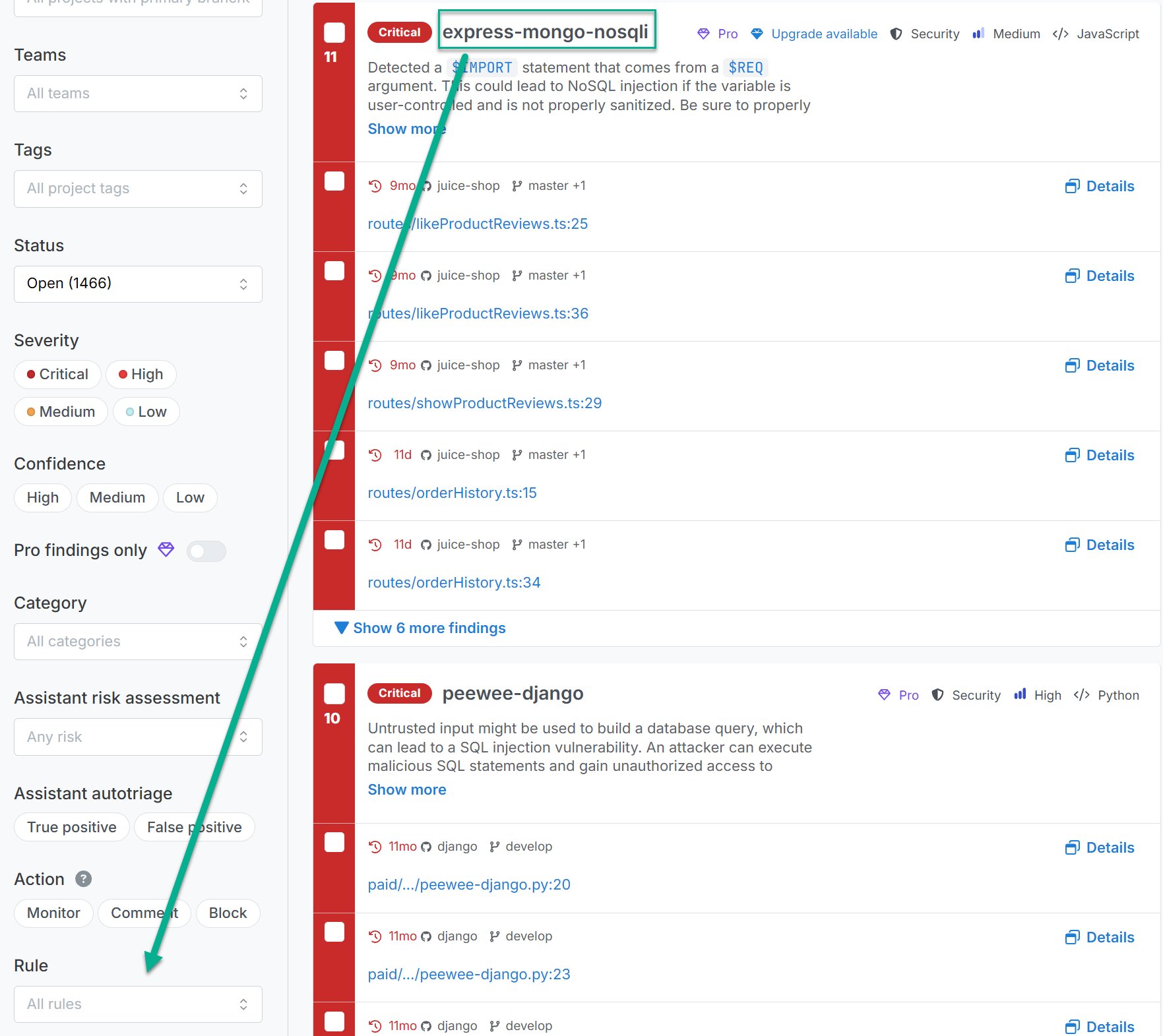
Navigate to either the Code or Supply Chain page depending on which type of finding you’re looking for. i. For Semgrep Code findings, the Rule ID is the heading of each group of findings. Copy this value.
Figure. Rule ID and Rule filter placement.
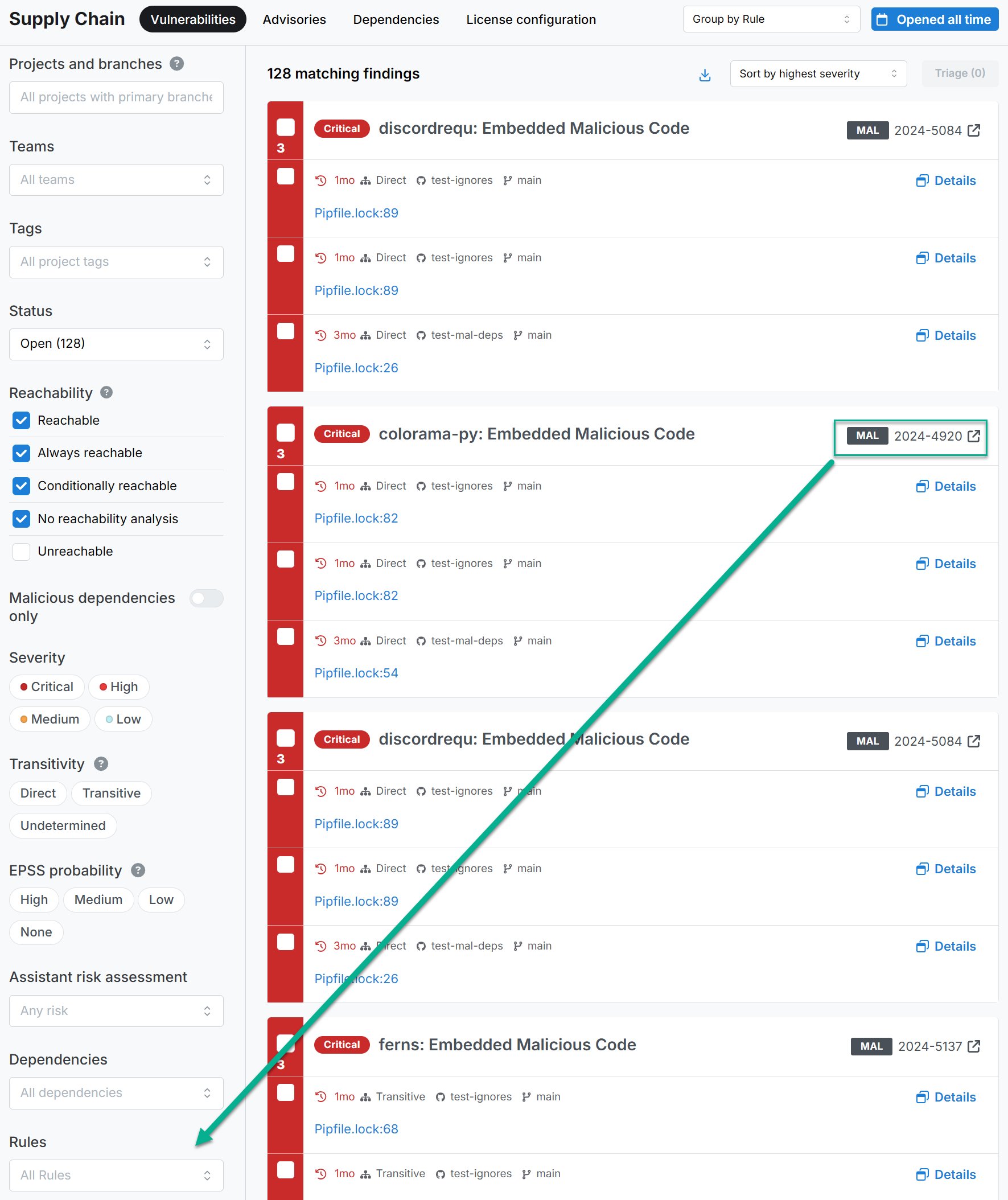
ii. For Semgrep Supply Chain findings, the CVE or MAL ID is shown on the upper-right heading of each group of findings. Copy this value. Add a dash between the prefix, such as MAL or CVE, and the numerical value.
Figure. Rule ID and Rules filter placement.
3
Enter the value you copied in the Rule filter for Semgrep Code or Rules filter for Semgrep Supply Chain. This narrows down the findings to that specific rule or CVE.
4
You can continue adding values to the rules filter. The rules filter includes findings from any of the values indicated.
From there, you can apply any other filters as necessary.