

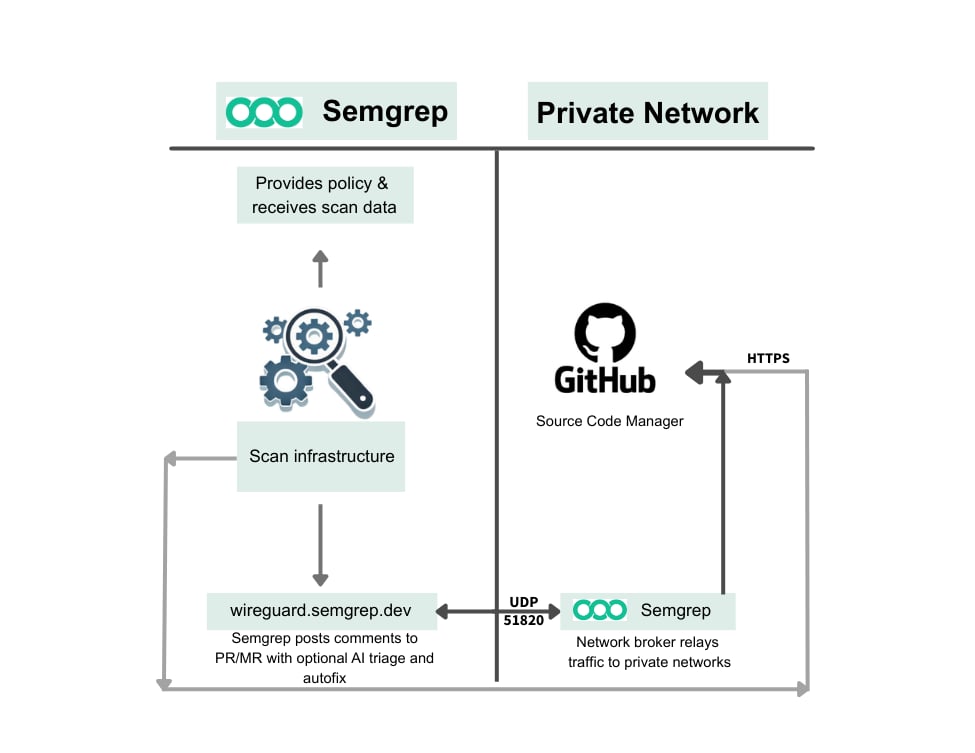
Overview of how Semgrep Network Broker facilitates access between Semgrep and your private network.
- Pull request comments
- Code access for Semgrep Managed Scans if enabled
- Autofix pull requests and merge requests
- Webhooks
Feature availability
TIER AVAILABILITYSemgrep Network Broker is available to Enterprise tier users.
Deployment
The Network Broker can be run as a bare Docker container, in a Kubernetes cluster, or simply as a standalone binary on a machine. Only one instance of the WireGuard-based Network Broker can be run at any time. Multiple brokers with the same configuration can cause disconnects, instability, and packet loss.System requirements
- CPU: 1
- RAM: 512 MB
Network requirements
- Between Semgrep and Broker:
- Allow traffic from
wireguard.semgrep.devon UDP port 51820. If you are on a dedicated Semgrep tenant, allow traffic fromwireguard.<tenant-name>.semgrep.devinstead. - If using the
--deployment-idCLI flag, allow outbound tosemgrep.devon TCP port 443 for HTTPS.
- Allow traffic from
- Between Broker and each private network resource, enable outbound on TCP ports 80 and 443 for HTTP/HTTPS communication.
DETERMINING IP ADDRESSESTo determine the IP addresses for a domain, use
dig. The addresses are listed under the ANSWER section. Example: dig wireguard.semgrep.devArtifacts
You can choose between deploying pre-made artifacts or building your own.Pre-built by Semgrep
- Docker images are available from ghcr.io/semgrep/semgrep-network-broker.
- A sample Kubernetes Manifest is present within the repository. This should be extended for production.
Build it yourself
See the Network Broker repository’s README for instructions on how to build it yourself.Configure Semgrep Network Broker
Ensure that you are logged in to the server where you want to run Semgrep Network Broker. Complete the following steps while logged in to that server.Create the config file
- v0.47.0 and later
- v0.25.0 to v0.46.0
- v0.24.0 and earlier
Create a For more than one SCM instance, see Allowlist multiple source code managers with one configuration file.The SCM-specific keys shown in the other tabs, such as
config.yaml file similar to the following snippet, or copy a starting config from the Semgrep AppSec Platform at Settings > Broker. The steps required to generate values for the placeholders SEMGREP_LOCAL_ADDRESS, YOUR_PRIVATE_KEY, and YOUR_BASE_URL, as well as the scopes required for the access tokens, are provided in subsequent steps of this guide.gitlab, are still supported.Multiple configuration files
You can overlay multiple configuration files on top of each other by passing multiple-c arguments:
scms list in v0.47.0 and later is an exception. The broker matches entries that have the same type and baseUrl and combines them into one entry. It keeps a key that only one file sets, such as token. If both files set the same key, it uses the value from the later file. Entries with a different type or baseUrl are both kept. A later file does not replace the list.
Generate a keypair
The broker requires a WireGuard keypair to establish a secure connection. To generate your private key to replaceYOUR_PRIVATE_KEY in the config template:
1
Determine the Network Broker version you want to use. The format should be similar to
v0.42.0. Most users should use the latest version, especially when setting up the broker for the first time.2
Run the following command in the CLI to generate your private key, replacing the placeholder with the Network Broker version number:
3
Run the following command in the CLI to generate your public key, replacing the placeholders with your private key generated in the previous step and the Network Broker version number:
Your public key is safe to share. Do not share your private key with anyone, including Semgrep.
Update the config with the keypair
1
Update the
config.yaml file by replacing YOUR_PRIVATE_KEY with the value of your private key.2
Add your public key to the Semgrep AppSec Platform:i. Log in to Semgrep AppSec Platform.ii. Navigate to Settings > Broker.iii. Paste your public key and click Add Public Key.
Provide the private key through the environment
In Semgrep Network Broker v0.46.0 and later, you can pass the private key with an environment variable instead ofprivateKey in config.yaml. Use this when the key lives in a secret manager.
Set one of the following variables when you start the broker:
SEMGREP_NETWORK_BROKER_PRIVATE_KEY: the private key, as printed bygenkey.SEMGREP_NETWORK_BROKER_PRIVATE_KEY_PATH: the path to a file containing the private key, such as a mounted Docker or Kubernetes secret. A trailing newline in the file is ignored.
- Docker with an environment variable
- Docker with a mounted file
- Kubernetes
Pass the key when you start the broker:
- If you set either variable, the broker uses that key, ignores
privateKeyin the config file, and logs a warning that it overrode the config file value. - If you set both variables, the broker uses
SEMGREP_NETWORK_BROKER_PRIVATE_KEY. - If
SEMGREP_NETWORK_BROKER_PRIVATE_KEY_PATHpoints to a missing or empty file, the broker exits with an error. - The private key must be exactly 44 characters, which decodes to 32 bytes. Otherwise, the broker exits with an error that names the source of the key.
Update the config with your SCM information
Update theconfig.yaml by replacing the SCM information containing YOUR_BASE_URL with your SCM and its base URL for Azure DevOps, GitHub, GitLab, or Bitbucket Data Center.
If you use the scms key with an SCM list, available in v0.47.0 and later, set each entry’s type to the key shown in the tab for your SCM: either azuredevops, bitbucket, github, or gitlab. Set its baseUrl to the baseURL value shown in that same tab.
- Azure DevOps
- Bitbucket
- GitHub
- GitLab
Semgrep Network Broker versions 0.28.0 and later support Azure DevOps.
Add your local address to the config
1
Convert your organization ID to hexadecimal. The organization ID is found in Semgrep AppSec Platform under Settings > General > Identifiers in Semgrep AppSec Platform. This is sometimes also called a deployment ID. You can use a tool such as Decimal to Hexadecimal converter to perform the conversion if needed.
2
Embed the resulting hexadecimal value in the string
fdf0:59DC:33cf:9be8:0:ORGANIZATION_ID:0:1, replacing ORGANIZATION_ID with the value.3
Update the
localAddress field of config.yaml, replacing SEMGREP_LOCAL_ADDRESS with the string you generated in Step 2.Start the broker
Run the following command to start Semgrep Network Broker with your completed configuration file:Check Semgrep Network Broker logs
You can check the logs for Semgrep Network Broker by running:Adjusting log verbosity
Semgrep Network Broker can log details of the proxied requests and responses for troubleshooting. To log additional details, add this snippet to your broker configuration:proxy.request and proxy.response.
These values can also be set on a per-allowlist basis:
Enable verbose WireGuard logging
To troubleshoot connection issues potentially related to the WireGuard configuration, you can enable verbose logging by adding the following snippet to the broker configuration:Use Semgrep Network Broker with Managed Scans
Semgrep Managed Scans uses Semgrep Network Broker to connect to your internal source code management instance. To enable Managed Scans when using Network Broker, ensure that you’ve updated your SCM information to allow code access:- Azure DevOps
- Bitbucket
- GitHub
- GitLab
ACCESS TOKENSSemgrep recommends providing the access token when you connect the source code manager instead of in the Network Broker configuration. However, if you must provide the token in the Network Broker configuration, see Prerequisites and permissions for access token requirements.
scms key with an SCM list, available in v0.47.0 and later, add allowCodeAccess: true to each entry that needs code access. The setting applies only to the entry that sets it.
Semgrep Network Broker supports repository cloning when allowCodeAccess is true, beginning with Network Broker v0.36.0 (for GitHub, beginning with v0.32.0).
For earlier Network Broker versions, the URL allowlist must include the base URL of your instance in order to clone repositories for scanning from any organization or group. For example, if your source code manager is at https://git.example.com/, the following allowlist will permit cloning repositories:
Use Semgrep Network Broker with Autofix
To use Autofix through the Network Broker:- Upgrade to Network Broker 0.45.2 or later. Older versions return a 403 allowlist error.
- Set
allowCodeAccesstotruefor that SCM. This setting defaults tofalse. See Use Semgrep Network Broker with Managed Scans for examples.
allowCodeAccess unset or set it to false.
Use Semgrep Network Broker for private registry access
Semgrep Supply Chain can route private registry traffic through the Network Broker, allowing Semgrep to reach registries that aren’t publicly accessible on the internet. This is useful when your package registry is hosted inside your private network and can’t be accessed directly from the Semgrep backend. To enable this, select Use network broker for registry access when you connect the registry to Semgrep. For the broker to reach your registry, add the registry URL to theallowlist and permit GET and HEAD requests:
<registry-host> with the host of your registry.
Run multiple instances of Semgrep Network Broker
Do not attempt to run multiple instances of Semgrep Network Broker to increase availability. Running multiple instances can result in contention and is less reliable than running a single instance.Allowlist multiple source code managers with one configuration file
You can allow access to multiple source code managers (SCM) within one configuration file.- v0.47.0 and later
- v0.46.0 and earlier
Add one entry to Each entry requires
scms for each SCM instance. You can add several instances of the same type, such as two GitHub Enterprise Server instances:type and baseUrl, and accepts token and allowCodeAccess. See the broker README for the endpoints each SCM type allows.You can use both scms and SCM-specific keys, such as github, as long as the same instance is not defined twice. The broker exits with an error at startup in the following cases:- An SCM-specific key and an
scmsentry have the sametypeandbaseUrl. - For GitHub, GitLab, and Bitbucket: if two entries of the same type share a host and at least one of them sets
allowCodeAccess: true. The broker allows repository cloning for these SCMs by host, so it can’t have different code access settings for the same host. Give each instance its own host, or leaveallowCodeAccessunset on every instance on that host.