

dev, production, or develop.
In many cases, Semgrep automatically detects primary branches when it first scans your project. If you have projects (repositories) with unique primary branch names, you can set them through the Semgrep web app.
A primary branch enables Semgrep to filter your findings by branch and to accurately deduplicate findings. The primary branch is also used to analyze the deployment of secure guardrails to your developers; findings fixed before they are merged into the primary branch reduce the overall production backlog.
The following video provides an introduction and walkthrough:
Prerequisites
- The project has successfully completed at least one full scan.
Find projects without a primary branch
Projects without primary branches have an orange information icon next to their name in the Projects page.Changes to existing URLs
For Semgrep AppSec Platform users whose accounts were created prior to September 4, 2024, this feature may affect any bookmarks or saved links created for custom views or slices in product pages such as Code, Supply Chain > Vulnerabilities, and Secrets. The primary branch feature deprecates certain filters, which affect the parameters in your URL. In these cases, you may have to re-create your bookmarks.- The following parameters are deprecated:
ref=_defaultref=_other
- For Code page and Supply Chain > Vulnerabilities tab:
- Bookmarks that use the
refparameter without arepo, your URL will be redirected to the default view instead. - Bookmarks that use any number of
repoparameters without arefwill display the findings of primary branches for all repositories selected. - Any filters using multiple
refsnow show only oneref, such as the primary branch.
- Bookmarks that use the
Set a project’s primary branch
- Primary branches are set on a per-project basis in the Semgrep web app. To quickly update your primary branches, use the API endpoint.
- For more information on how primary branches may affect existing projects behavior see:
Through the web app
INFOFor Semgrep AppSec Platform users whose accounts were created prior to
September 4, 2024, you may have to sign out and sign in again for this feature
to appear.
1
In the Semgrep web app, click Projects.
2
Search for your project’s name.
3
Click the gear icon to access the settings page for that project.
4
In the Primary branch section, click the drop-down box and select a branch. The drop-down menu shows a list of scanned branches.
5
Click Save.
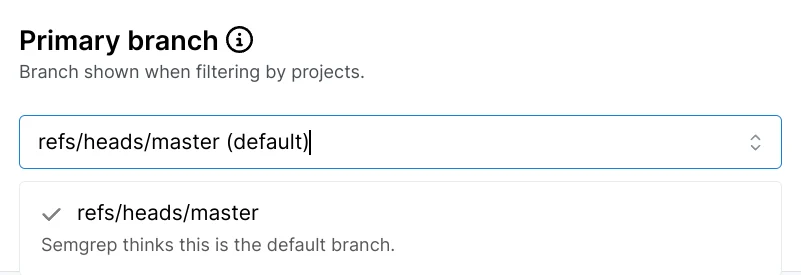
Through an API endpoint
You can also send apatch request to the following endpoint: Deployment > Project endpoint. Add the primary_branch key in the request body.
How Semgrep counts findings in the Projects page
You can view finding counts on the Projects page. The default counts use the following branch scope:- Semgrep Code and Semgrep Supply Chain counts use the primary branch.
- Semgrep Secrets counts include deduplicated findings across all branches.
- All findings uses the previously selected branch scope.
- Priority findings uses your organization’s priority filters, including saved branch filters.