You must provide a Bitbucket workspace access token to Semgrep, which can be created by a user with the Product Admin role. Once you have Semgrep Managed Scans fully configured, you can update the token provided to Semgrep to one that’s more restrictive. The scopes you must assign to the token include:
Webhooks: Read and write
Repositories: Write
Pull requests: Write
Projects: Admin
Account: Read
Webhook permissions are required to support diff-aware scans.
You must provide a Bitbucket HTTP access token to Semgrep. The user who creates the token must be assigned the Project Admin role for the project you connect to Semgrep.
Enable Semgrep Managed Scans and scan your first repository
1
In Semgrep AppSec Platform, click Projects.
2
Click Scan new project > Semgrep Managed Scan.
3
Click Manage Connections and then + Connect more.
4
Select Bitbucket.
5
In the Set up Managed Scans page that appears, provide the information needed by Semgrep to connect to your Bitbucket project:
i. Select Bitbucket or Bitbucket Data Center.
ii. Provide your Access token.
iii. Provide the name of your Bitbucket workspace.
iv. For Bitbucket Data Center users only: provide the Bitbucket Data Center URL.
v. Click Connect.
6
Repeat the steps above for each additional Bitbucket workspace you’d like added to Semgrep.
You have successfully set up Managed Scans for your workspace or project.
After enabling Managed Scans, Semgrep performs a full scan in batches on all the repositories in the workspace.
Once a repository has been added to Semgrep AppSec Platform, it becomes a project. A project in Semgrep AppSec Platform includes all the findings, history, and scan metadata of that repository.
Projects with a Managed Scan configuration are tagged with managed-scan, regardless of whether the project is actively being scanned by Semgrep Managed Scans or not. The Projects list also contains pending scans and scans that never started.
Delete the bitbucket-pipelines.yml file in your Bitbucket repository if appropriate.
If you plan to continue running some scans in Bitbucket CI/CD Pipelines (for example, using Managed Scans to run weekly full scans but Bitbucket CI/CD Pipelines for diff-aware scans) you can leave the workflow file in place, and edit it to reflect your desired configuration.
TIPSemgrep preserves your findings, scans, and triage history.
Configure fail open to prevent diff-aware scans from blocking pull requests and merge requests
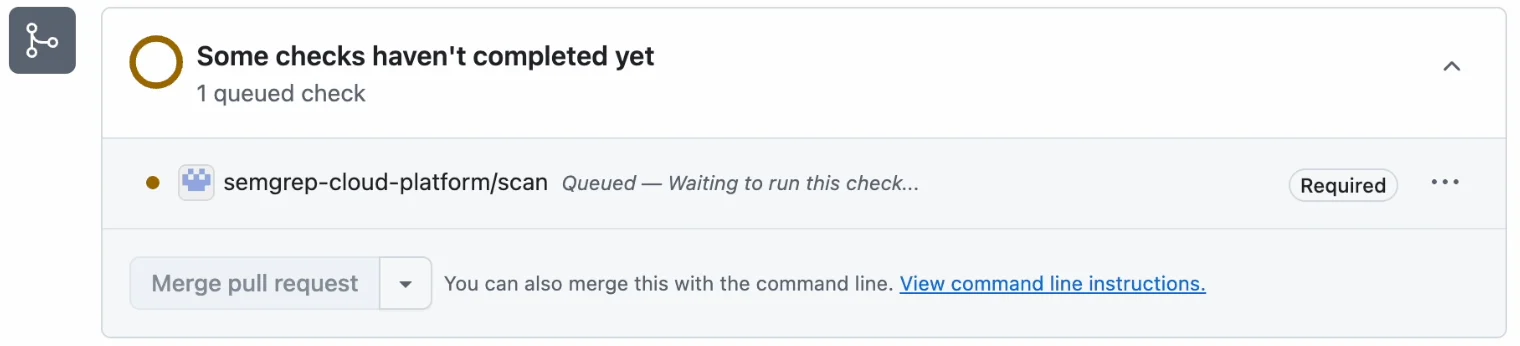
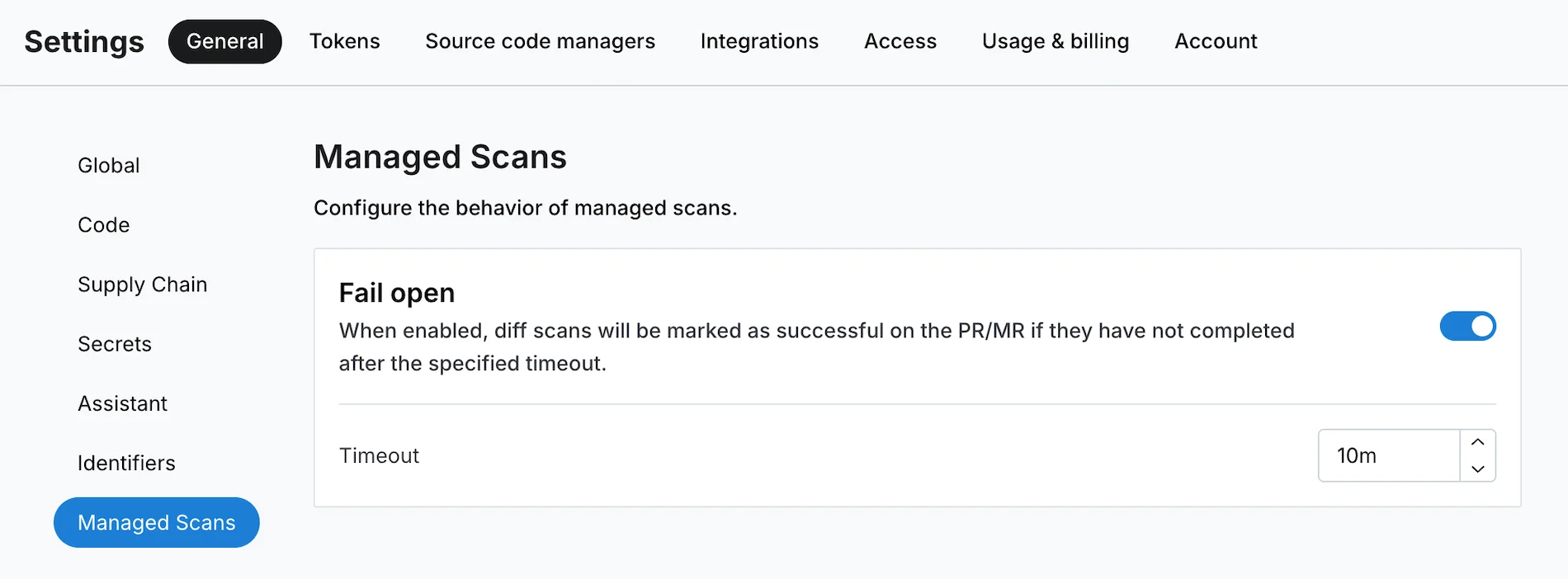
By default, diff-aware managed scans are set to fail open if a scan errors out or takes too long. This means that diff-aware scans are marked as successful on the pull request (PR) or merge request (MR), even if they have not completed after the specified timeout. This lets you make the Semgrep status check required in your source code manager (SCM) without blocking someone from merging a PR or MR if the check encounters an unexpected issue or takes too long.
Sample pull request showing the status of a diff-aware scan.
If enabled, the fail open feature is triggered whenever you open a PR or MR.
2
Initially, Semgrep sends an update to mark the PR or MR as pending.
3
Once the diff-aware scan begins, the PR or MR is updated to a status of running.
4
The diff-aware scan completes, and the PR or MR is updated to a status of succeeded or failed.
5
If the diff-aware scan is in pending or running status longer than the configured timeout, then the fail open process updates the PR or MR to display a status of succeeded. This prevents the Semgrep scan from blocking the developer from merging their changes.
If Semgrep marks a PR or MR as succeeded, you can merge the PR or MR without waiting for the diff-aware scan to complete. However, if the PR or MR is still open and the scan completes after the fail open timeout is reached, Semgrep can still report the findings and mark the status as failed.
Performing diff-aware Managed Scans of Bitbucket projects requires webhooks to be enabled. Webhooks are enabled by default when you add Bitbucket as a source code manager when setting up Semgrep Managed Scans. You can disable webhooks at any time by following these steps:
Turn off Managed Scans for specific repositories in Semgrep AppSec Platform
1
Sign in to Semgrep AppSec Platform.
2
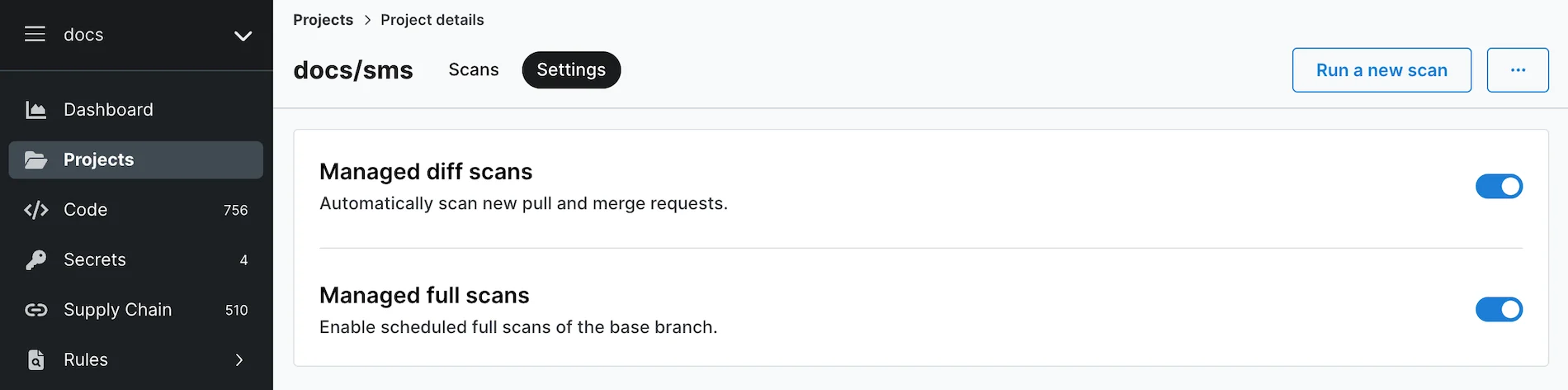
Go to Projects and find the project you no longer want scanned with Semgrep Managed Scanning. Click the project’s Details page > Settings tab.
3
Toggle the switch for Managed diff scans to turn off scans of new pull requests and merge requests and Managed full scans to turn off full scans of the base branch.
To view your scan logs in Semgrep AppSec Platform, go to Projects, then click on the project name. The projects in the list are sorted by scan date, with the most recent scans listed first.
INFOIt can take a few minutes for your latest scan logs to appear. However, if the logs do not update 15 minutes after the scan, there may be issues with the scan itself.
Scan statistics, such as how many of your repositories are being scanned, the scan success rate, and so on, can be provided once a week upon request. Contact your Semgrep account manager to request scan statistics.